
Catalog
Bulk Category Update
The Bulk Category Update area is used to update categories in bulk.
In This Tutorial
The Bulk Category Update area is used to update categories in bulk.
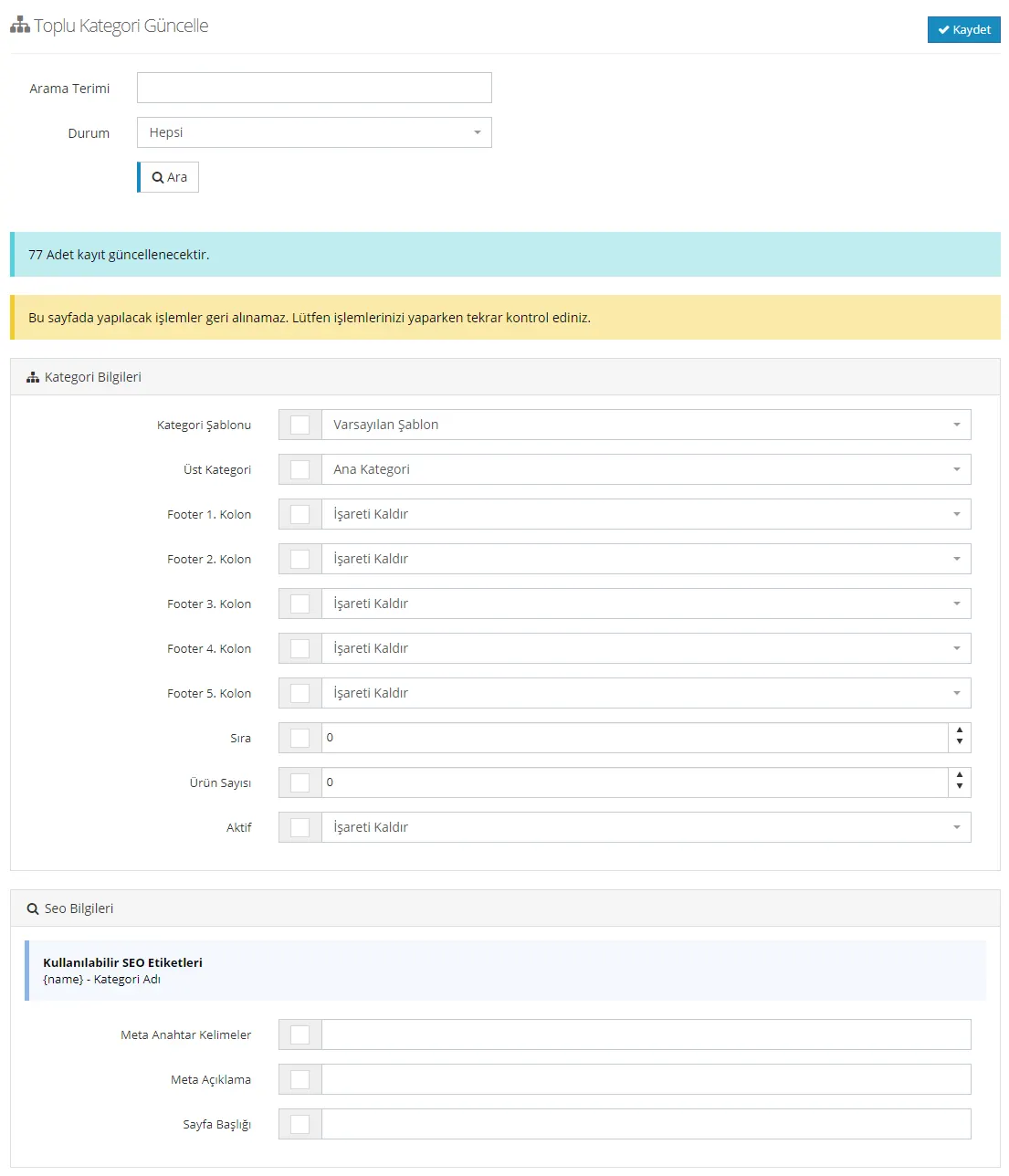
In the Search field, we can add a keyword related to the category we want to process. Then we can make a selection under Status. We can choose one of All, Active Categories or Passive Categories.
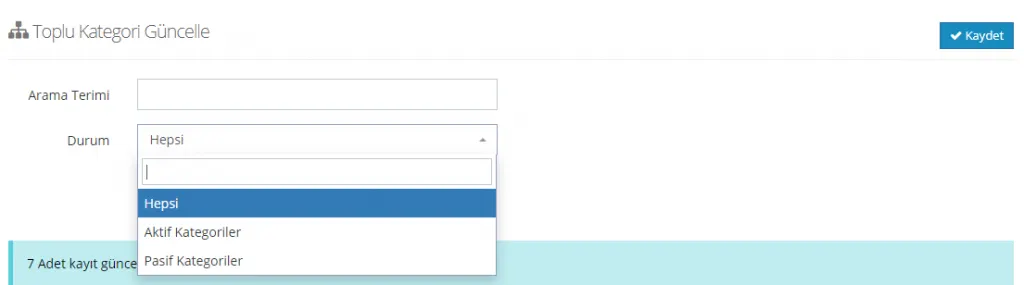
The system tells you how many records will be updated based on the result of your search. For example, suppose the records of 7 products will be updated. Keeping in mind that actions performed on this page cannot be undone, we start the category-based updates.

1. CATEGORY INFORMATION
Let's go through the headings we can edit in the Category Information area one by one:
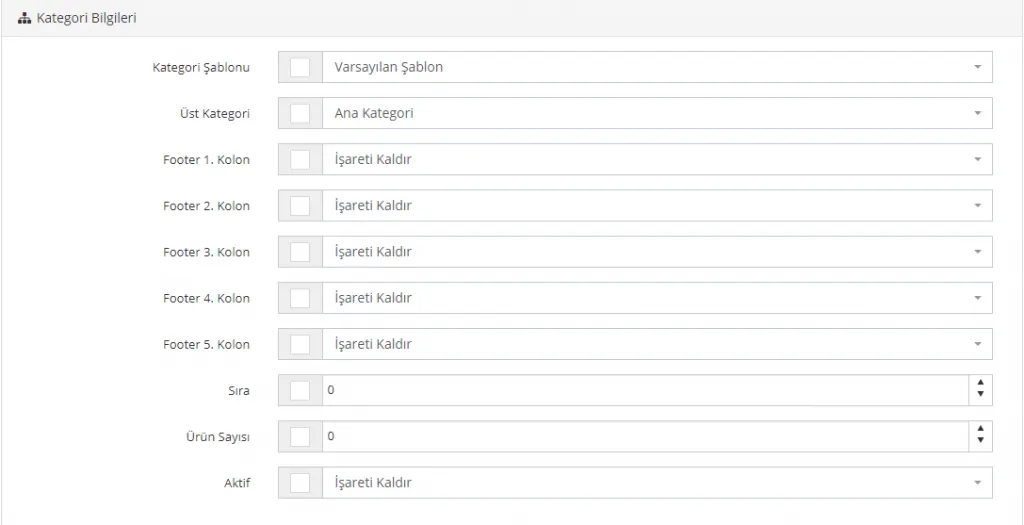
Category Template
Sets the Category Template for the selected categories. You can choose one of the Default Template, Left Menu Template or Right Menu Template options. For detailed information about template appearances, click here.

To choose a template for the selected categories, remember to tick the checkbox and click the SAVE button after the action.
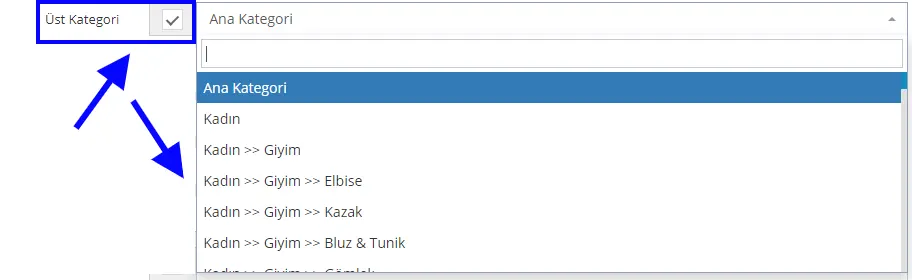
Parent Category
You can set a parent category in bulk for the selected categories, or you may want to define those categories as main categories. You can easily perform these actions from this area.
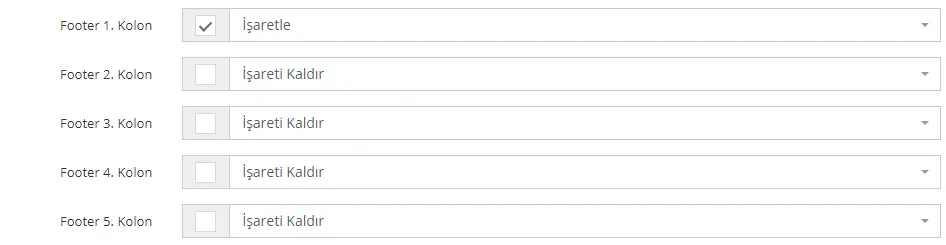
Footer Columns 1, 2, 3, 4, 5
Lets you define the footer area for the selected categories. This way, you can determine in bulk in which footer area those categories will be displayed.
Order
The ordering of the selected categories is done from this area. You can update the category order in bulk.

Number of Products
You can determine from this area how many products will be listed per page on the selected category pages. For example, if you set this number to five, the list moves to the next page at the 6th product within the category. If you set it to 100, it will move to the second page at the 101st product.

For example, let's look at the appearance of a category whose product count is set to 5:
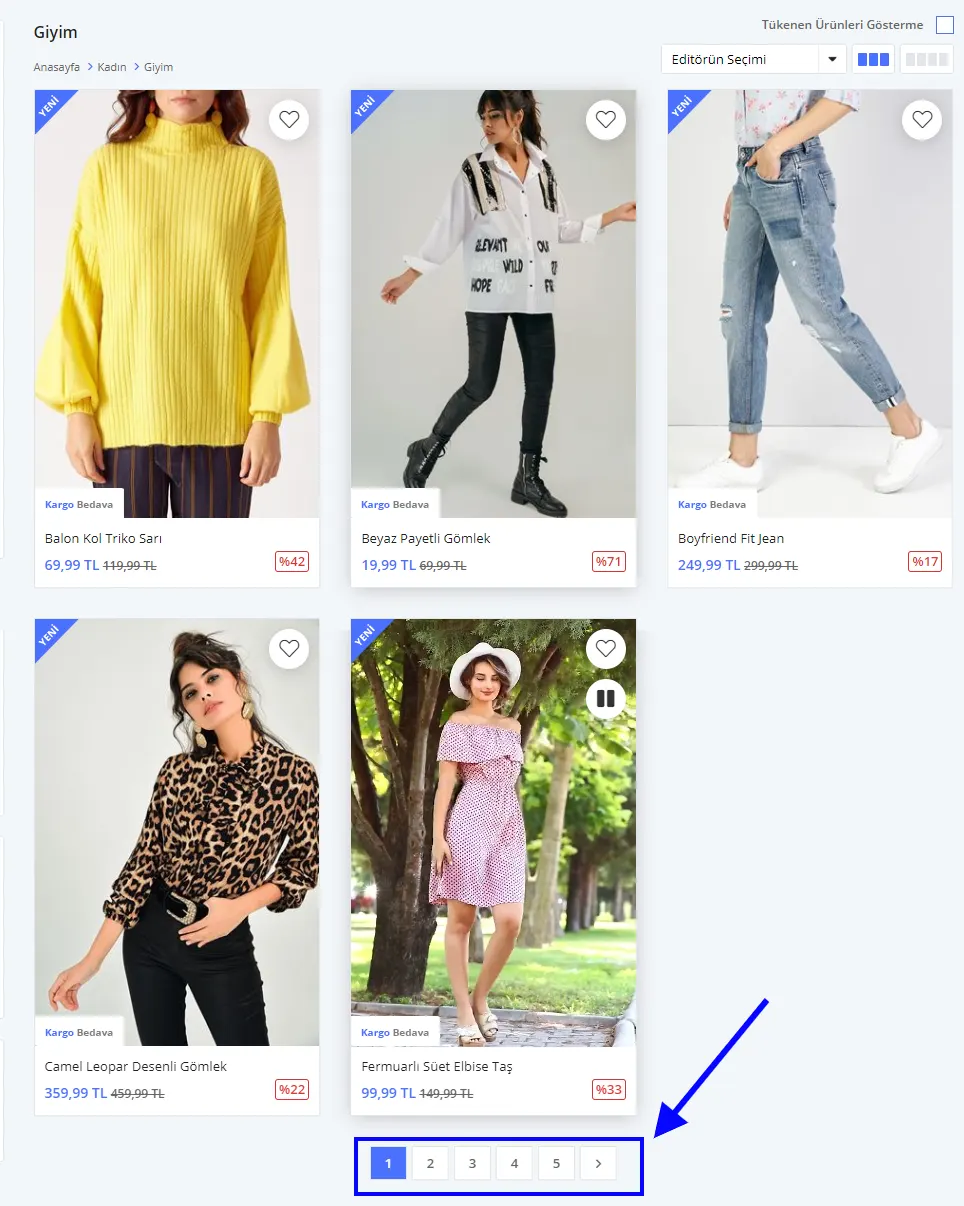
As you can see, the number of products displayed on the category page is limited to 5 and the list moves to the second page at the sixth product. You can apply this setting to all selected categories.
Active
In some cases you may need to deactivate multiple categories at once. In such cases, you can easily do so with the Active option. Or you can quickly reactivate categories you previously deactivated. Select Check to make a category active and Uncheck to make it passive.

2. SEO INFORMATION
We can also update the SEO information of categories in bulk. In this area, the familiar SEO panel appears again.
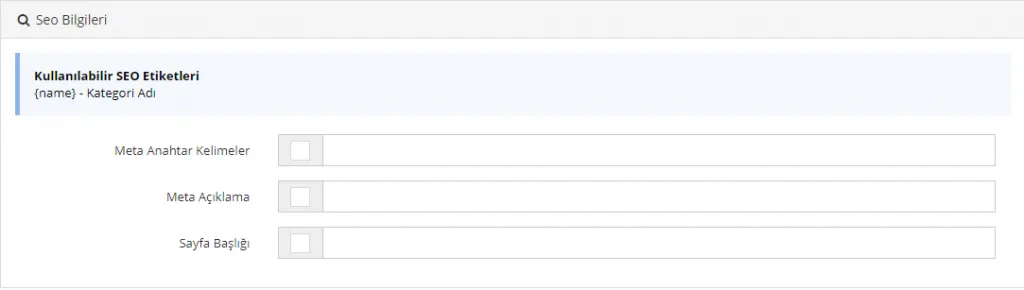
Meta Keywords
Bulk meta keyword entry is provided for the selected categories.

Meta Description
Bulk meta description entry is provided for the selected categories. You can write the most suitable meta description of 155 characters for your selected categories in bulk.

Page Title
Bulk page title entry is provided for the selected categories. You can write the most suitable page title of 65 characters for the selected categories.

After all edits, remember to tick the checkbox next to the selected heading(s) and click the SAVE button after editing.