
Content Management
How to Use Showcase Management?
On Faprika's Showcase Management training page, you will find detailed information on how to create, manage and effectively use showcases. With features such as different language options, image management and in-category showcase use, you can enrich your e-commerce site and improve the customer experience. This training is an ideal guide for those who want to make their products more attractive and accessible.
Showcase Management
In the world of online retail, capturing the attention of potential customers and increasing sales is an art. First impressions are extremely important, and for this reason your website's home page and category pages should be where your brand and products are presented at their best. Showcase Management is a powerful tool that helps you accomplish this important task. Here is a look at how Faprika's Showcase Management feature can provide a strategic advantage in your e-commerce business.
With the showcases that will appear on your home page and category pages, you can effectively display the products you prioritize to your customers. In these showcases, you can place campaign images as well as products. For example, by featuring your campaign for a specific product group on your home page, you can make it easier for your customers to quickly reach that product group.
Showcase management also offers flexibility with multi-language support. While offering different images and products to your Turkish-language users, you can also create different content for your customers who access the site in English. You can add new showcases or update your existing ones from the Showcase Management area under the Content Management menu.
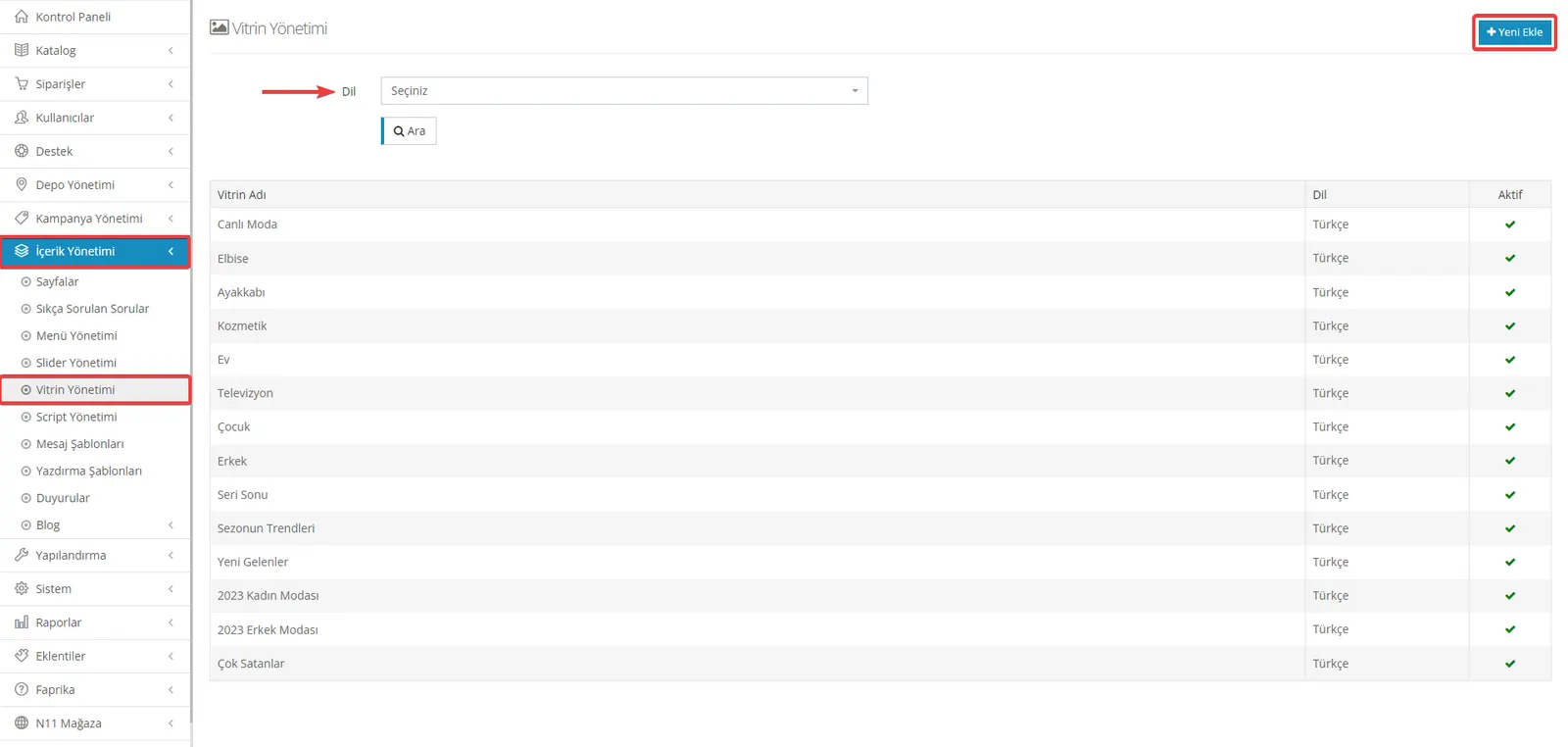
There are various fields you will encounter on the showcase add screen. These include the options “Language, Showcase Name, Showcase Description, Showcase Template, Order, Products as Slides, Active and Show on Home Page”.
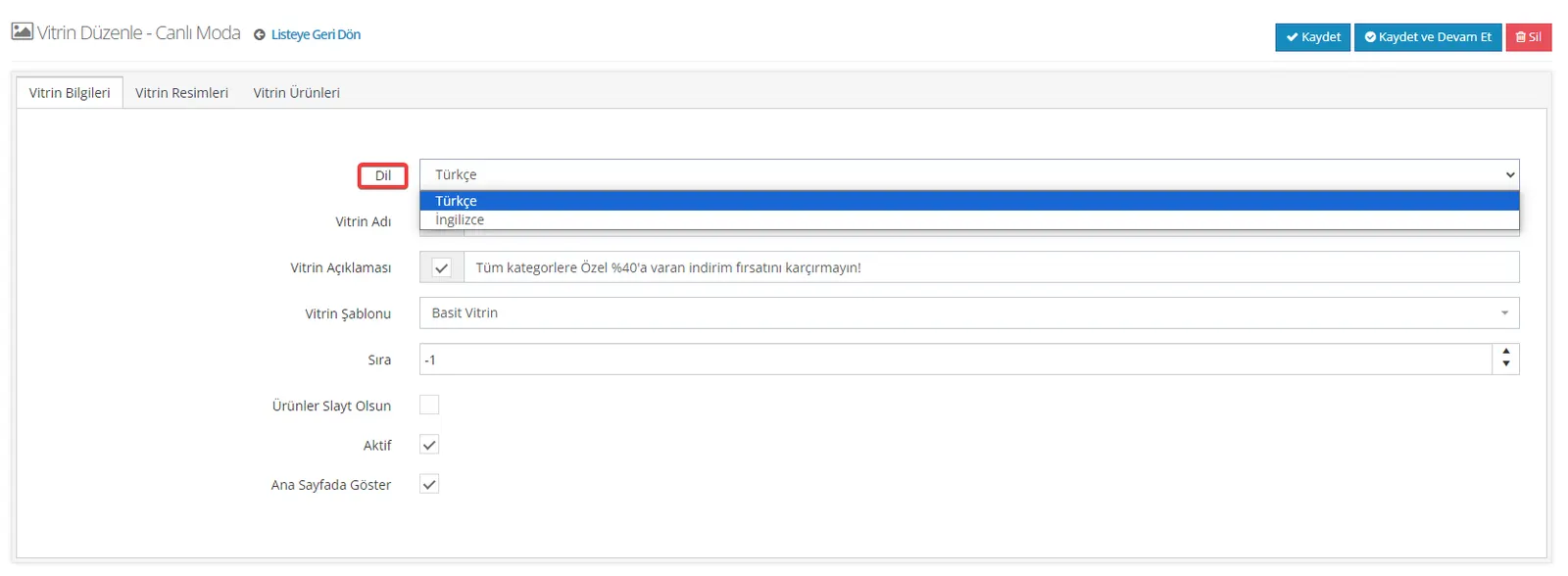
Language: Allows you to select the language of the showcase from this field. The available languages include Turkish, English, and other languages we support, and these options can be translated as desired. This makes it possible to create and display showcases specific to different language uses.
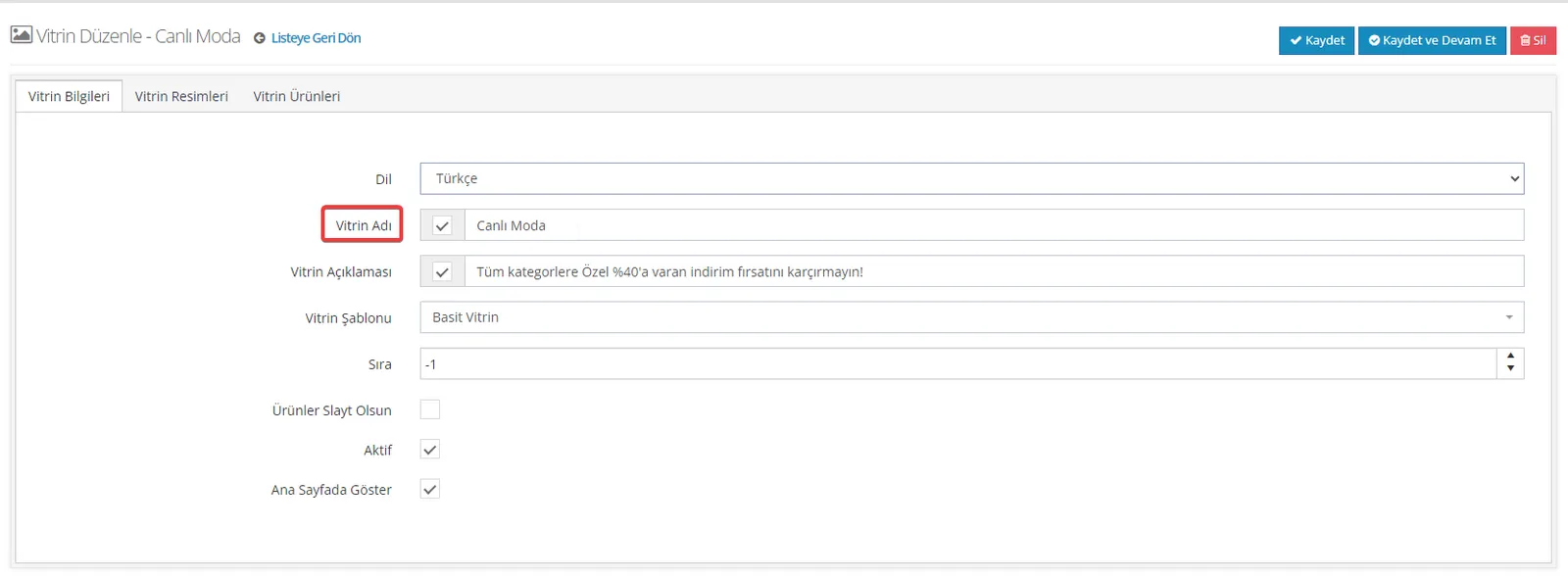
Showcase Name: This field defines the specific name set for the showcase. The name is made visible with the help of the checkbox next to it, so that it is recognized more easily by users.
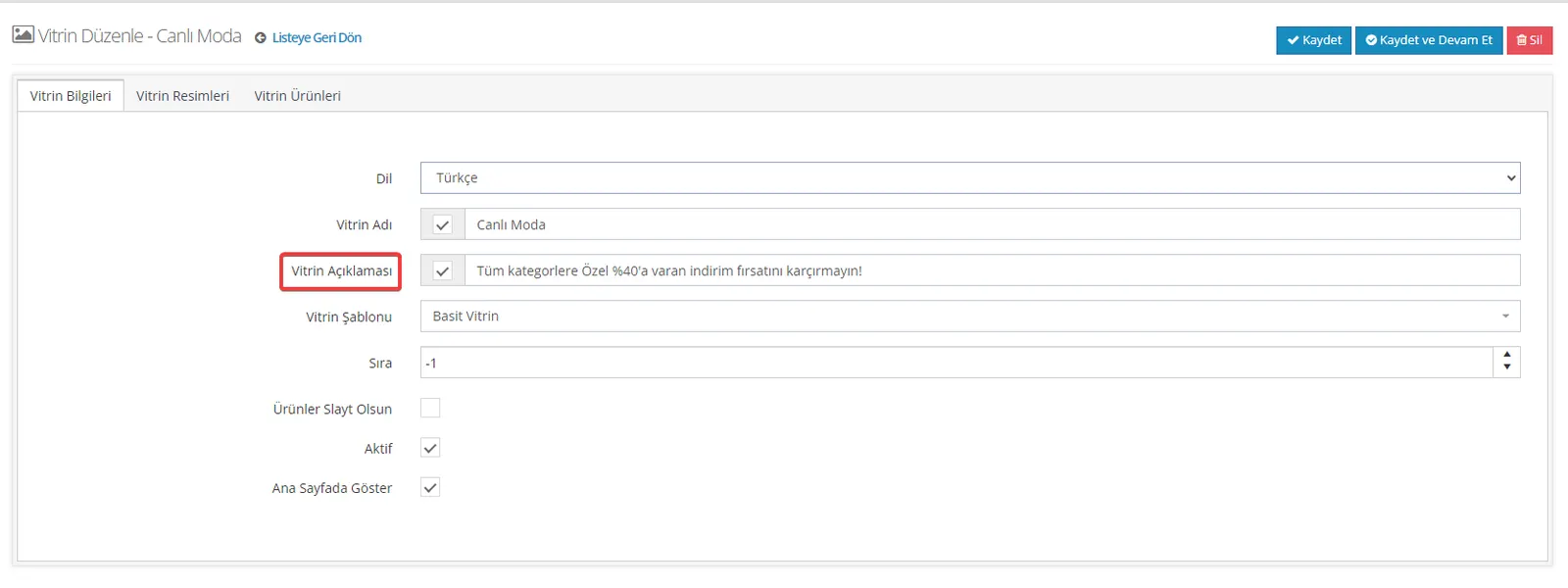
Showcase Description: This section is displayed between the showcase name and the images in the showcase. If you want to add a unique description that your customers can also easily see, you can place it in this field. You can activate this field with the checkbox next to it.
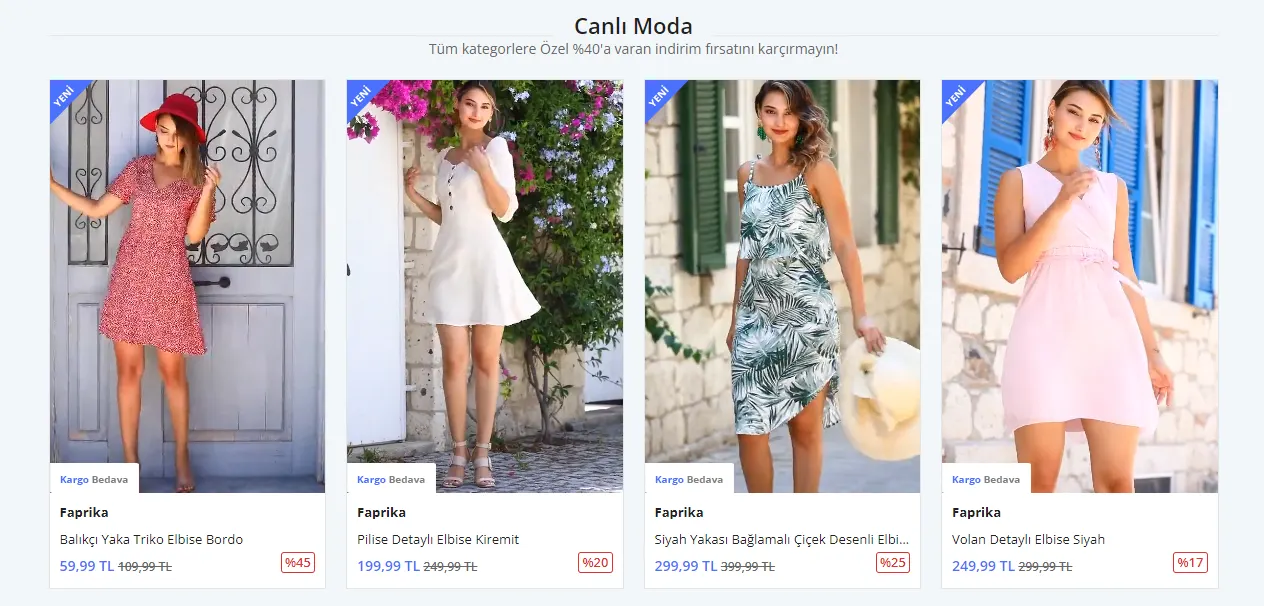
Showcase Template: This is the field that determines the visual layout of the showcase and how it will be displayed. Three different options are offered in this section, and by choosing the one that suits your needs you can have your showcase displayed the way you want.
1- Simple Showcase: This option offers a structure in which the entire showcase consists of images or products. This type of showcase, which does not contain a fixed image, provides a simple and effective display option.
2- Left Slider – Right Image: This showcase type includes a fixed image or banner on the right and sliding products (slider) on the left. The fixed image offers the possibility of directing to a specific category. Thanks to this feature, you can effectively promote your own products on your own site.
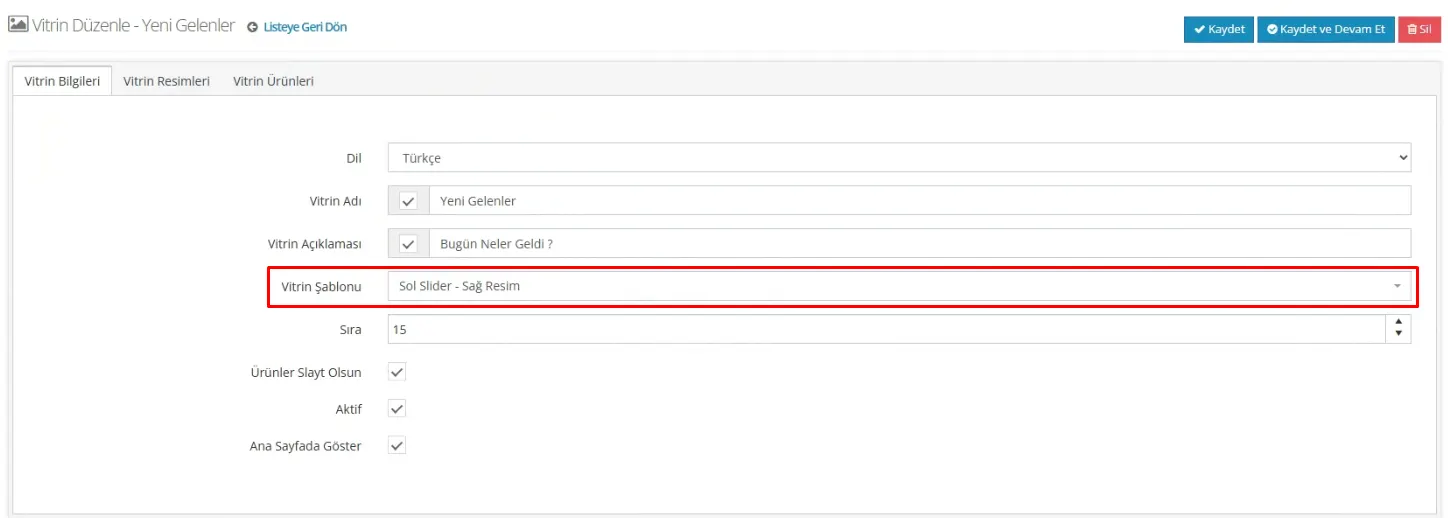
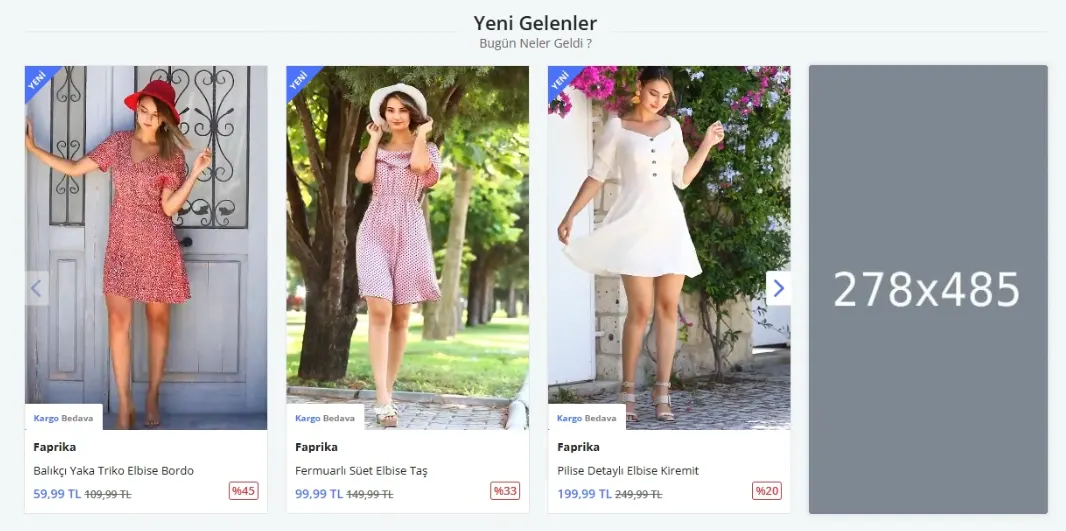
If the product images are in vertical format, for example 1280x1800, the showcase image should be prepared in a vertical format suitable size of 278x485 pixels. The showcase image column should be set to 12/12 for all devices.
3- Left Image – Right Slider: This showcase template includes a fixed image or banner on the left and sliding products (slider) on the right. The fixed image on the left can offer the possibility of directing to a specific category, so you can promote the relevant category more effectively.
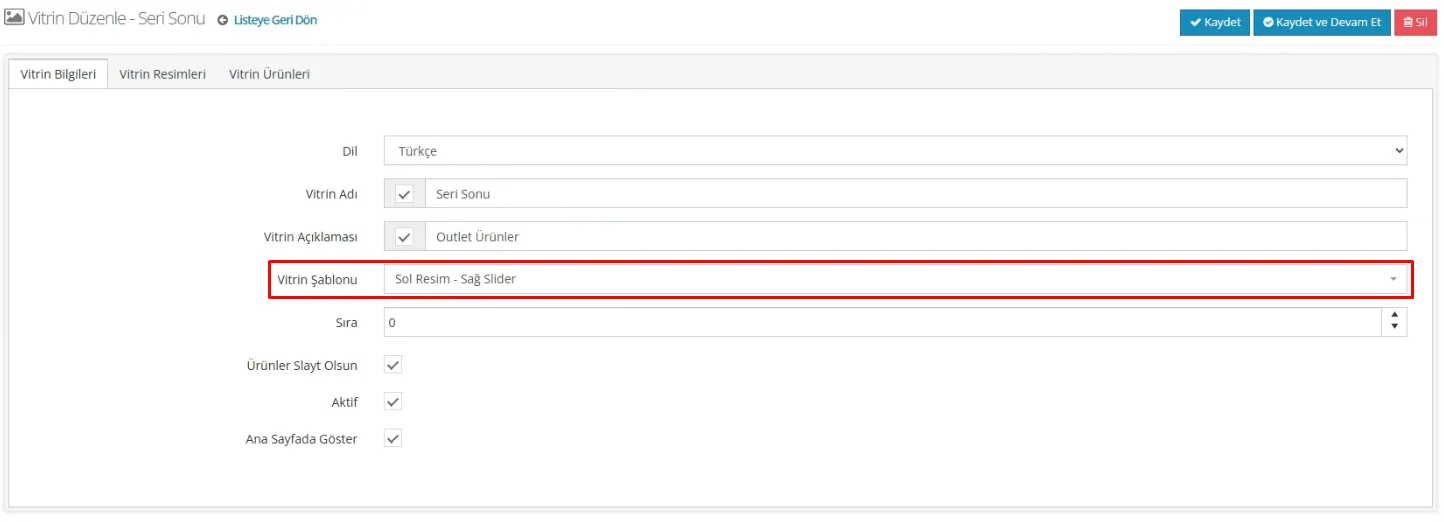
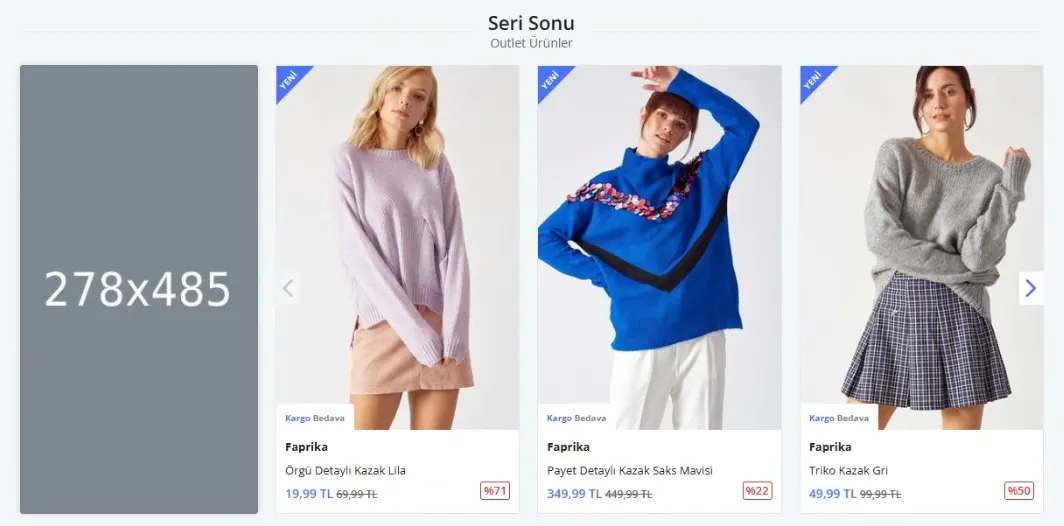
If the product images are in vertical format, for example 1280x1800, the showcase image should be prepared in a vertical format suitable size of 278x485 pixels. The showcase image column should be set to 12/12 for all devices.
4-Image Horizontal Simple Showcase: You need to set the Showcase Template selection to Simple . By activating the Show on Home Page option, you can make the showcase appear on the home page.
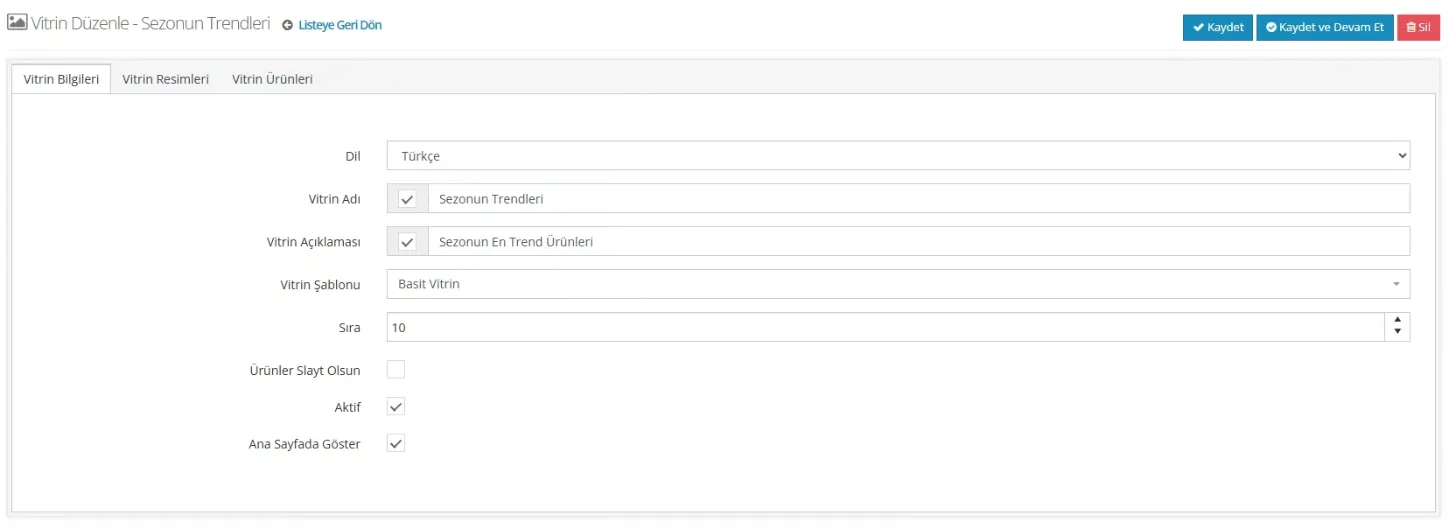
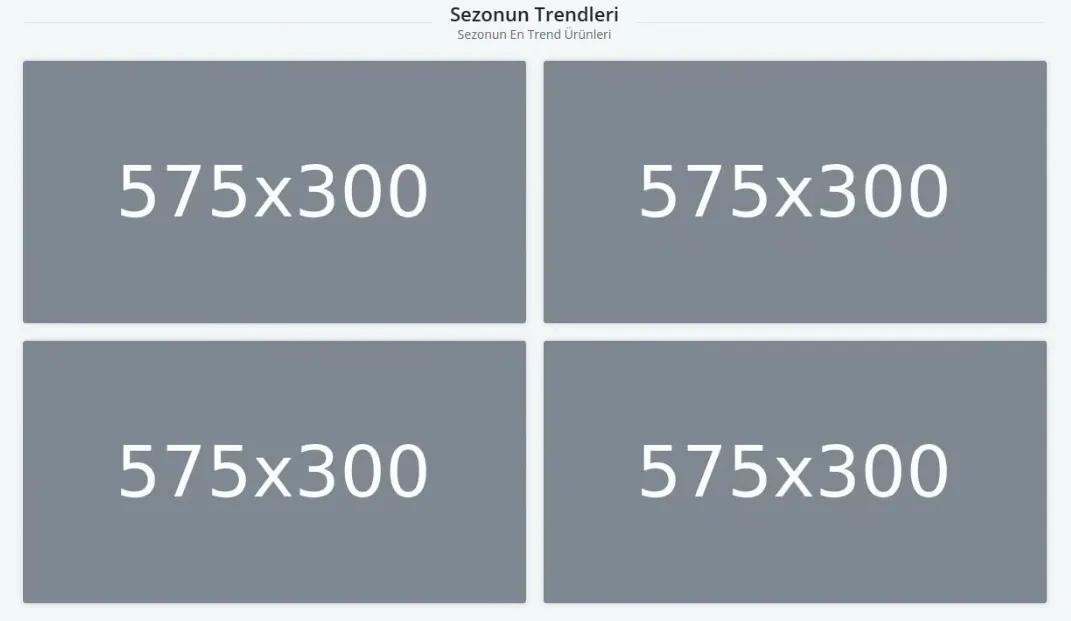
If you want your showcase in a horizontal 4-up view, images of 575x300 pixels must be uploaded. In the Showcase Images field, the column counts on Tablet and Desktop devices should be set to 6/12 .
5-Image Horizontal and Square Simple Showcase: You need to set the Showcase Template selection to Simple . By activating the Show on Home Page option, you can make the showcase appear on the home page.
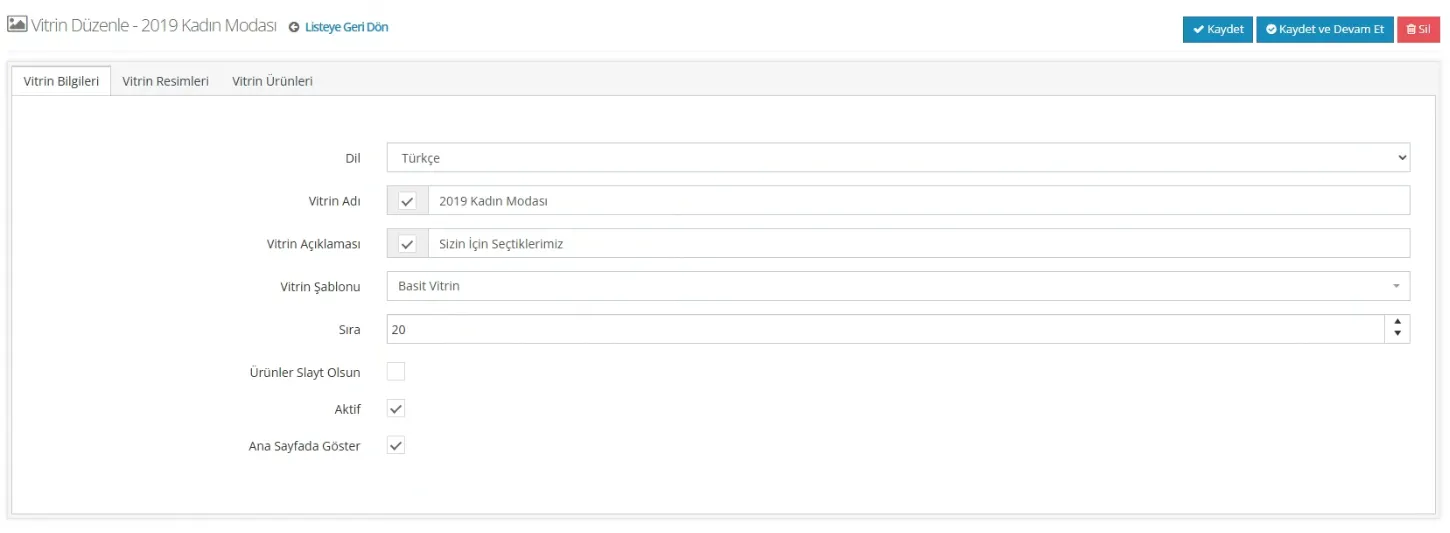
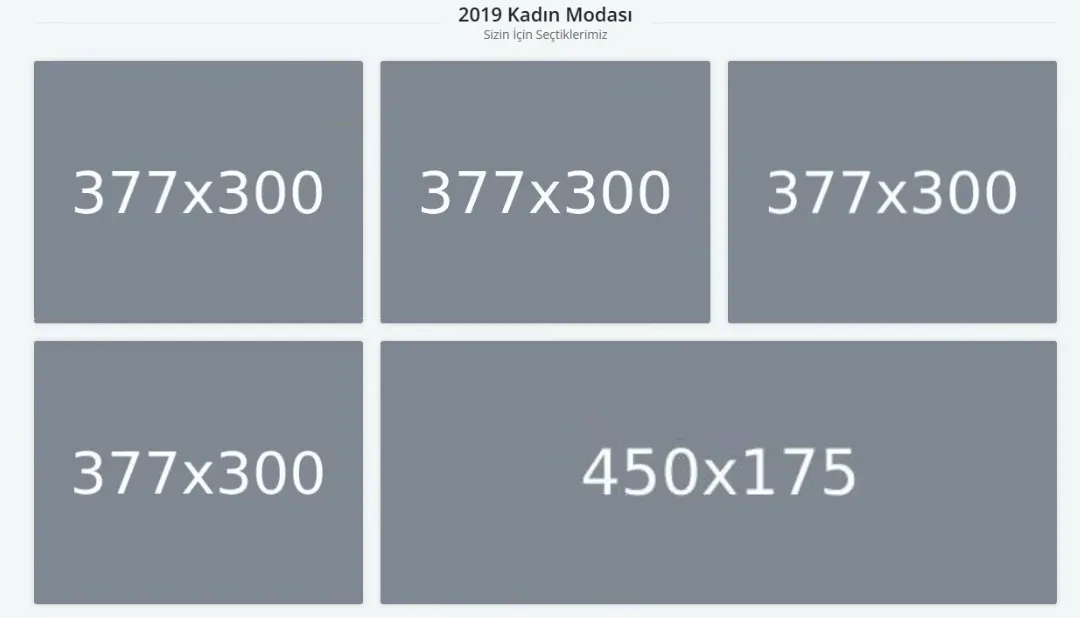
If you want your showcase in the 5-item view with both horizontal and square images, the square image size must be 377x300 pixels, and the horizontal image size must be 450x175 pixels. In the Showcase Images section, the column counts on tablet and desktop devices must be set to 4/12, for square images and 8/12 for horizontal images.
5-Image Horizontal and Square Simple Showcase: You need to set the Showcase Template selection to Simple . By activating the Show on Home Page option, you can make the showcase appear on the home page.
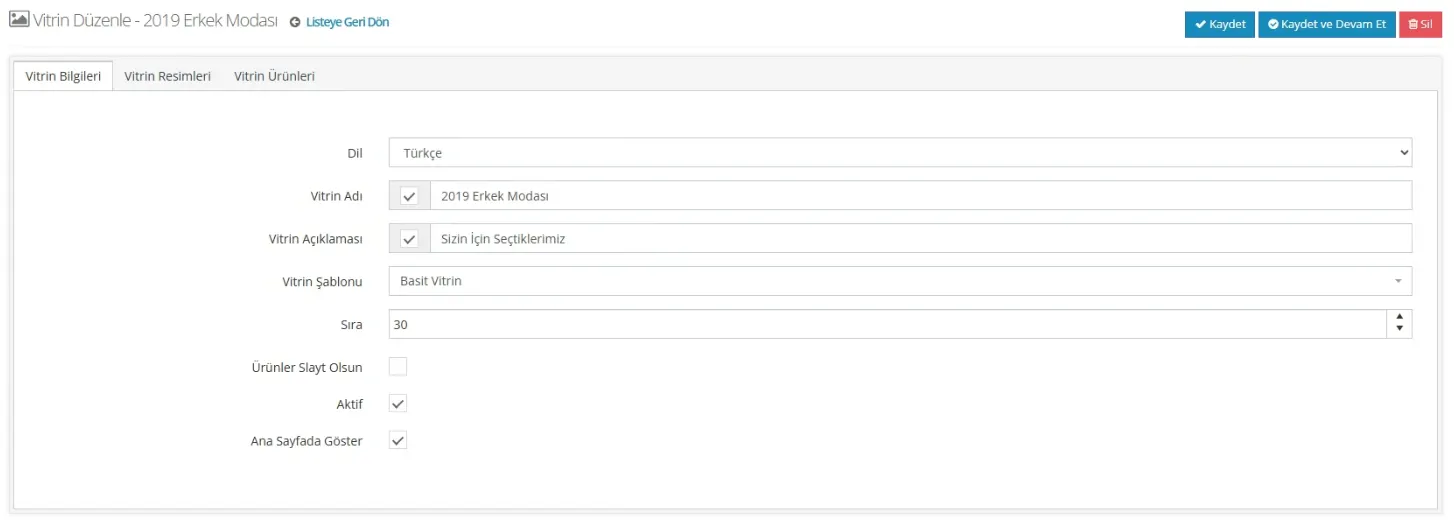
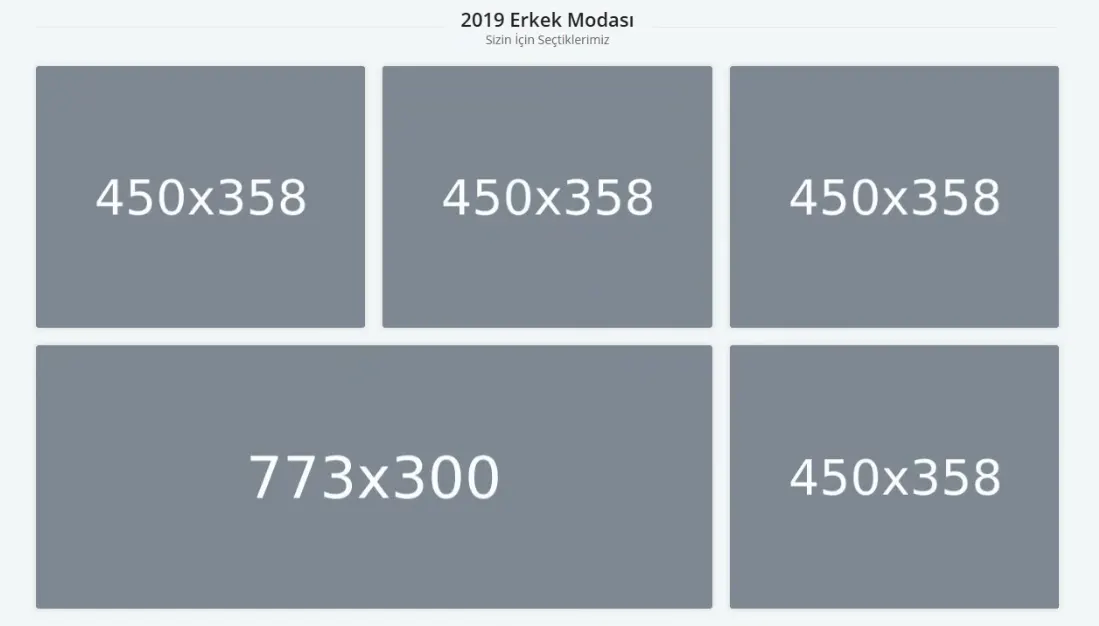
If you want your showcase in the 5-item view with both horizontal and square images, the square image size must be 450x358 pixels, and the horizontal image size must be 773x300 pixels. In the Showcase Images section, the column counts on tablet and desktop devices must be set to 4/12, for square images and 8/12 for horizontal images
Story: This showcase template is placed right below the slider image on your website's home page. With the images and products you add to the Story area, you can direct your customers to a specific product group. This way, you can draw more attention to the products or categories you want to highlight and help your customers reach these areas easily.

Order: Use this field when you want to set the order in which showcases are displayed. If you have more than one showcase, you can assign an order number to each one to create the layout you want. This way, you have full control over the order in which your showcases appear on the home page.
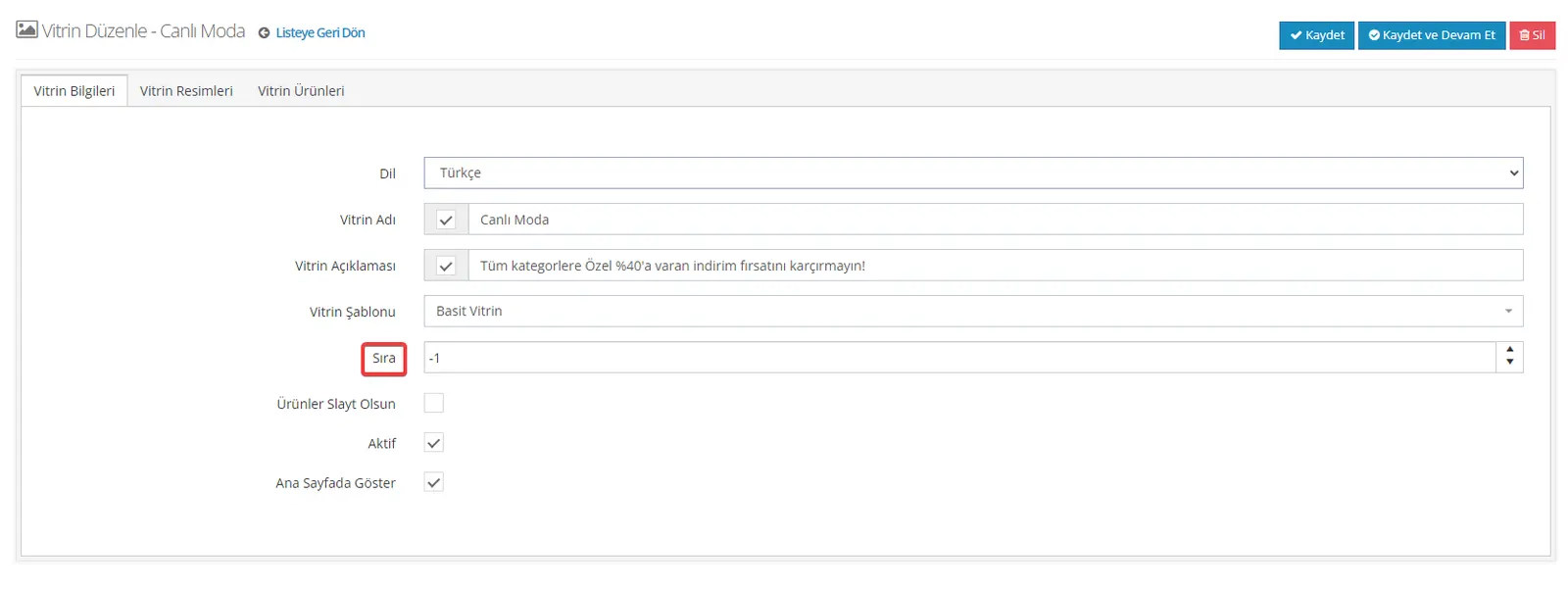
Products as Slides: If you add more than four products to a showcase area, this option lets your customers use arrow keys, as in a slider, to see the fifth product and beyond. When this option is not enabled, all the products you add are displayed directly on your home page, which may make the page look more crowded.
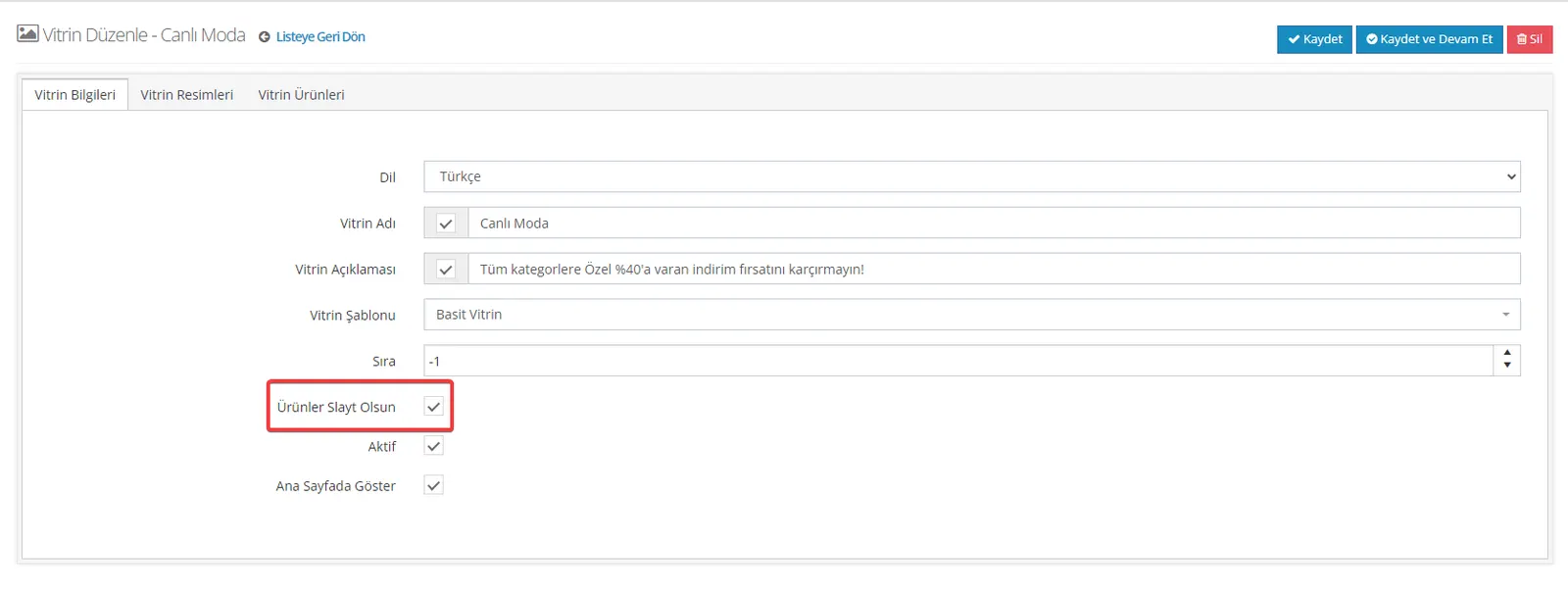
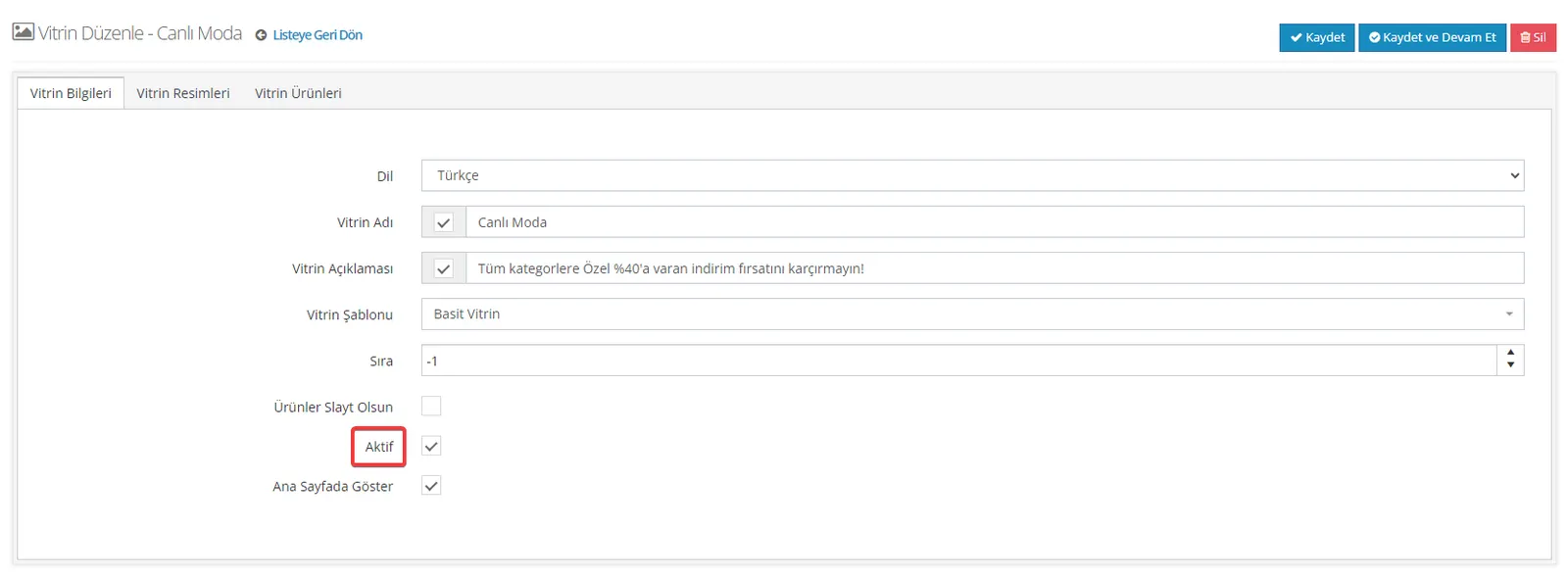
Active: Simply check this field when you want your showcase to be displayed. When it is not checked, the showcase becomes invisible on the site and cannot be accessed by visitors.
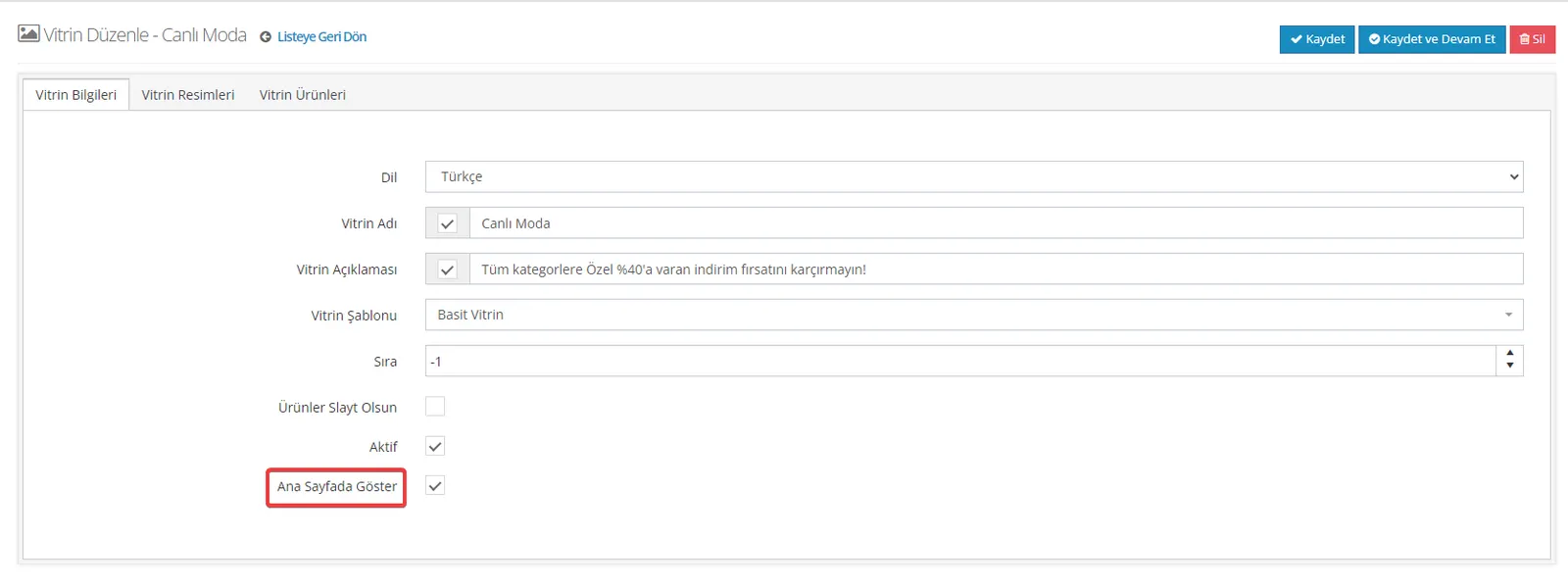
Show on Home Page: This option controls whether the showcase is displayed on the home page. If you want to show the showcase on the home page, you need to check this option. Otherwise, the showcase will not appear on your home page.
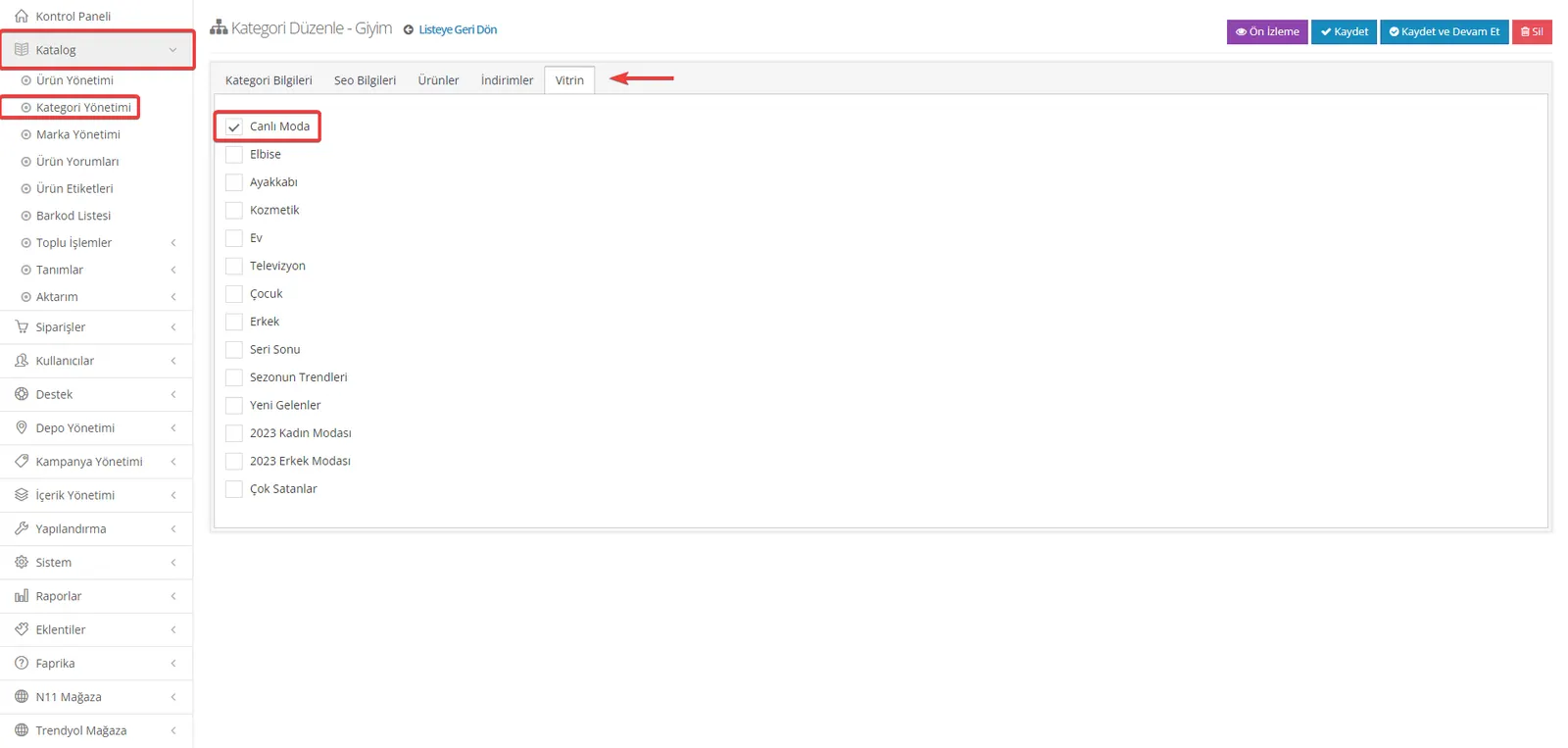
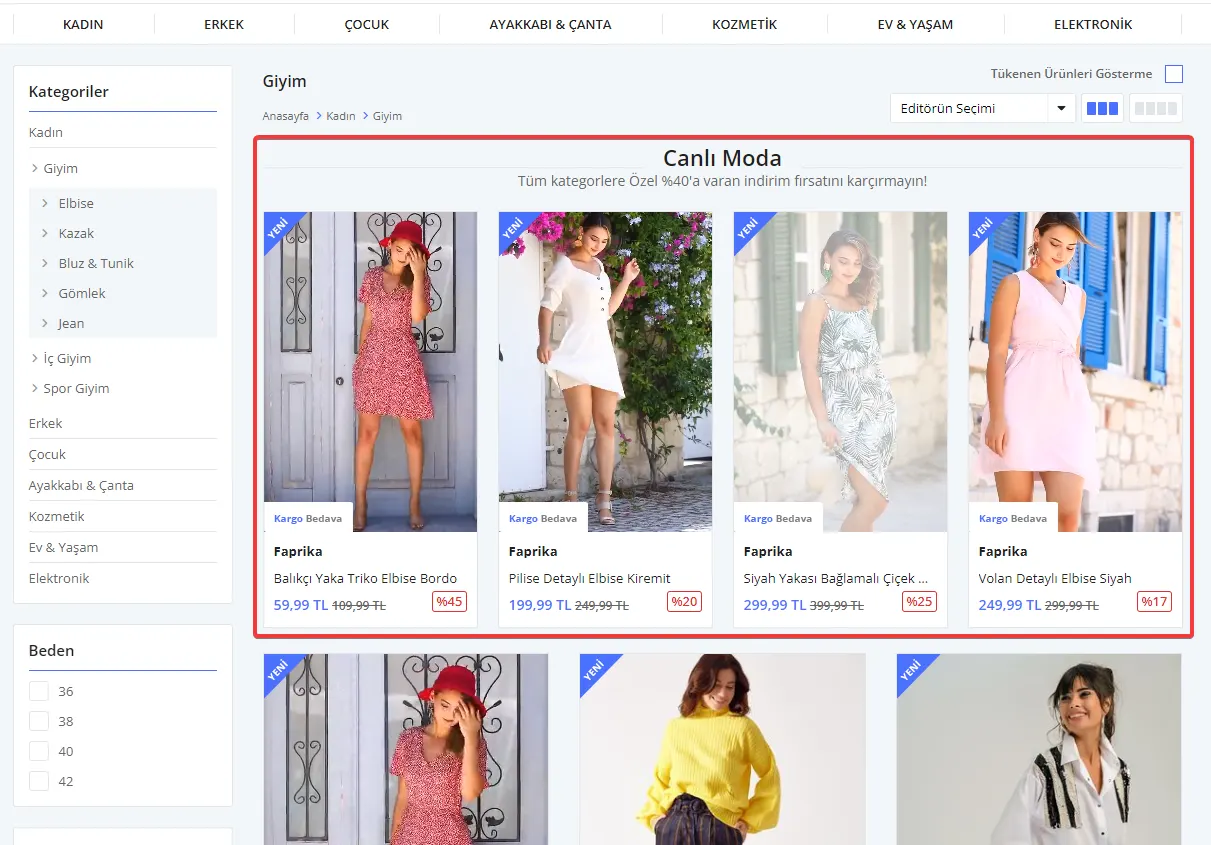
Showcases can be displayed not only on your home page but also in specific categories. If you turn off the "Show on Home Page" option and want to show showcases in categories, you can follow these steps:
- Go to "Category Management" from the "Catalog" menu.
- Open any category you like.
- Select the showcase you want from the "Showcase" area in the top menu.
This lets your customers easily reach the showcase you set up when they enter the category. You can use this feature especially for products you want to highlight within a category. This way, you can draw more attention to specific products or campaigns.
If you do not have this feature yet or want to learn more, visit the introduction page to explore the details of Faprika's unique Showcase Management feature.