
Configuration
Cash on Delivery Management
What Is Cash on Delivery? It is a service fee charged by shipping companies for orders whose payment is not collected in advance. This fee is charged in addition to the standard shipping fee. How Is Cash on Delivery Activated? Let's follow the steps “Configuration >> Payment Settings >> Payment Types” and examine the headings on this screen.
In This Tutorial
What Is Cash on Delivery?
It is a service fee charged by shipping companies for orders whose payment is not collected in advance. This fee is charged in addition to the standard shipping fee.
How Is Cash on Delivery Activated?
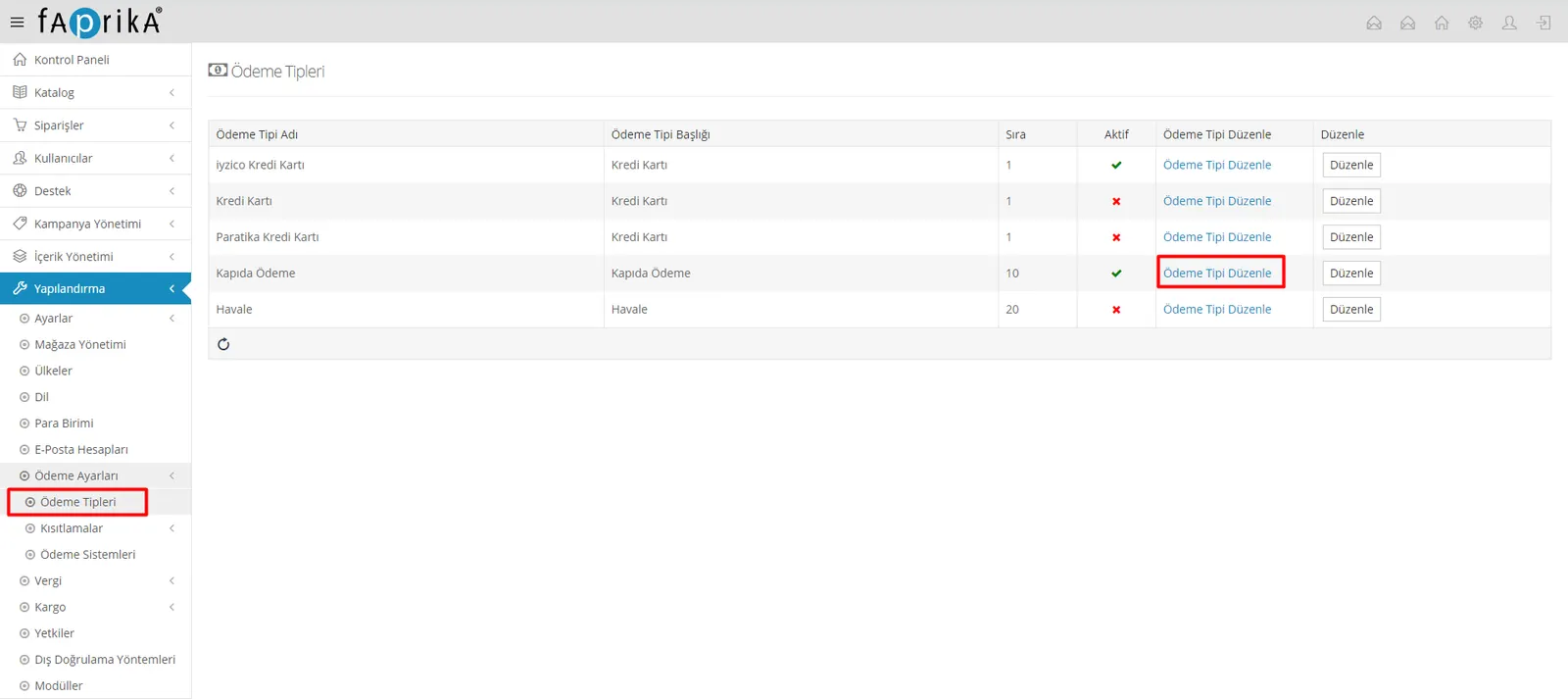
Follow the steps “Configuration >> Payment Settings >> Payment Types” and review the headings on this screen.
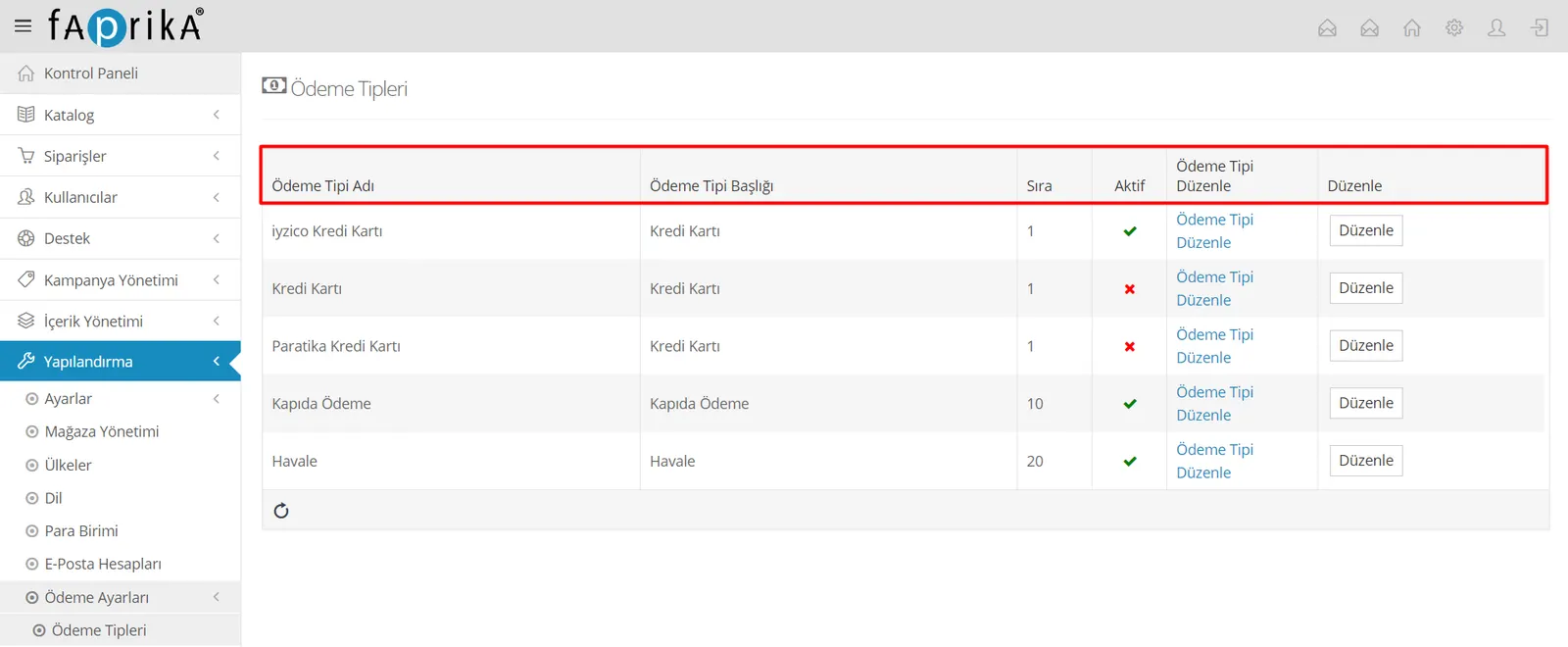
Payment Type Name: The specific name of the payment type.
Payment Type Title: In this field we can give a more general name; it works as a kind of categorization. In our example, we classified 3 payment types by entering the title “Credit Card”.
Order: Represents the row order in which items are listed (displayed) on the screen. You need to enter the lowest number or value for the payment type you want in the top row.
Active: Lets us quickly see from this field whether the relevant payment type is active or inactive.
Edit Payment Type: The area where we can comprehensively edit the relevant payment type and define price, restrictions and similar settings.
Edit: The area where we can change the name, title, order and active/inactive status of the relevant payment type.
Now let's click the “Edit Payment Type” text on the “Cash on Delivery” row. In the image below, the Cash on Delivery payment type appears as active; if it were inactive, after clicking the “Edit” button we would need to make it “Active” and then click “Save”.
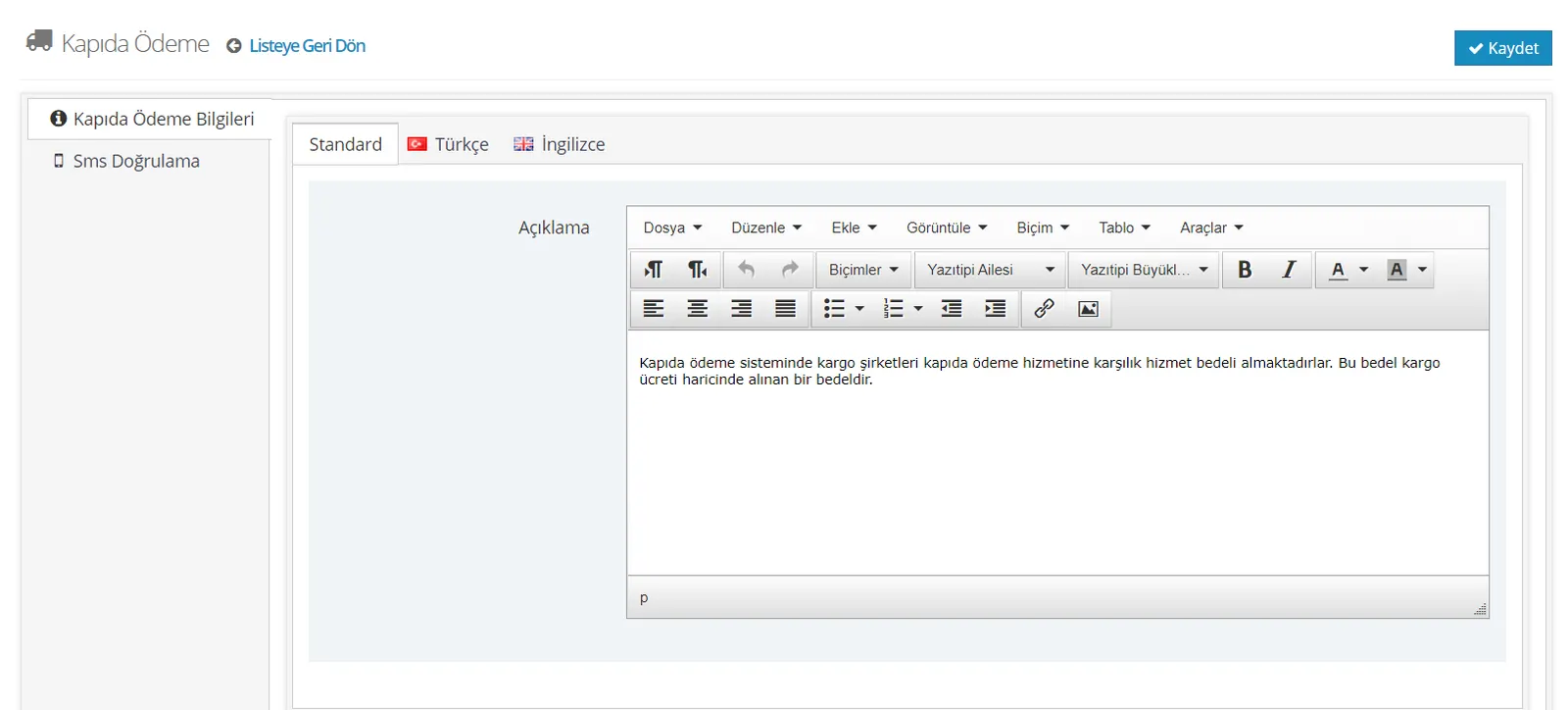
If we wish, we can write an information message using the editor in the “Description” section.
Let's examine the other headings on this screen.
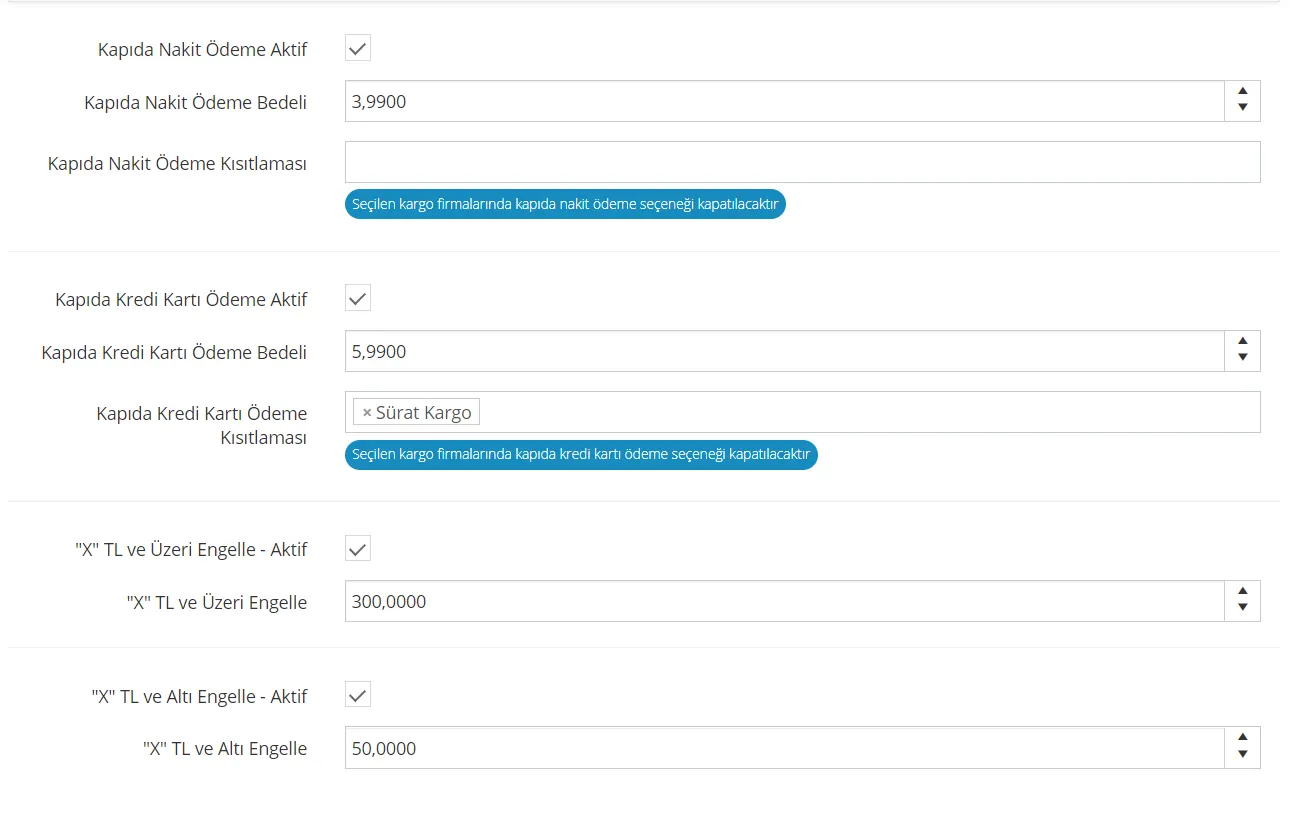
Cash on Delivery (Cash) Active: The area where you can switch active/inactive. If this option stays active and you do not enter a cash on delivery fee, your customers will use this service free of charge.
Cash on Delivery (Cash) Fee: If you want to apply an extra fee for this service, you need to enter it in this field.
Cash on Delivery (Cash) Restriction: If there are one or more shipping companies you want to restrict, you can do so from this field.
Credit Card on Delivery Active: The area where you can switch active/inactive. If this option stays active and you do not enter a cash on delivery fee, your customers will use this service free of charge.
Credit Card on Delivery Fee: If you want to apply an extra fee for this service, you need to enter it in this field.
Credit Card on Delivery Restriction: If there are one or more shipping companies you want to restrict, you can do so from this field. In our example, we restricted the “Sürat Kargo” company.
Block “X” TL and Above – Active: If the customer’s cart total is above the amount you set, the order cannot be completed with the “Cash on Delivery” option.
Block “X” TL and Above: This is the field where we enter the amount.
Block “X” TL and Above – Active: If the products the user has added to the cart are below the amount you set, the order cannot be completed with the “Cash on Delivery” option.
Block “X” TL and Above: This is the field where we enter the amount.
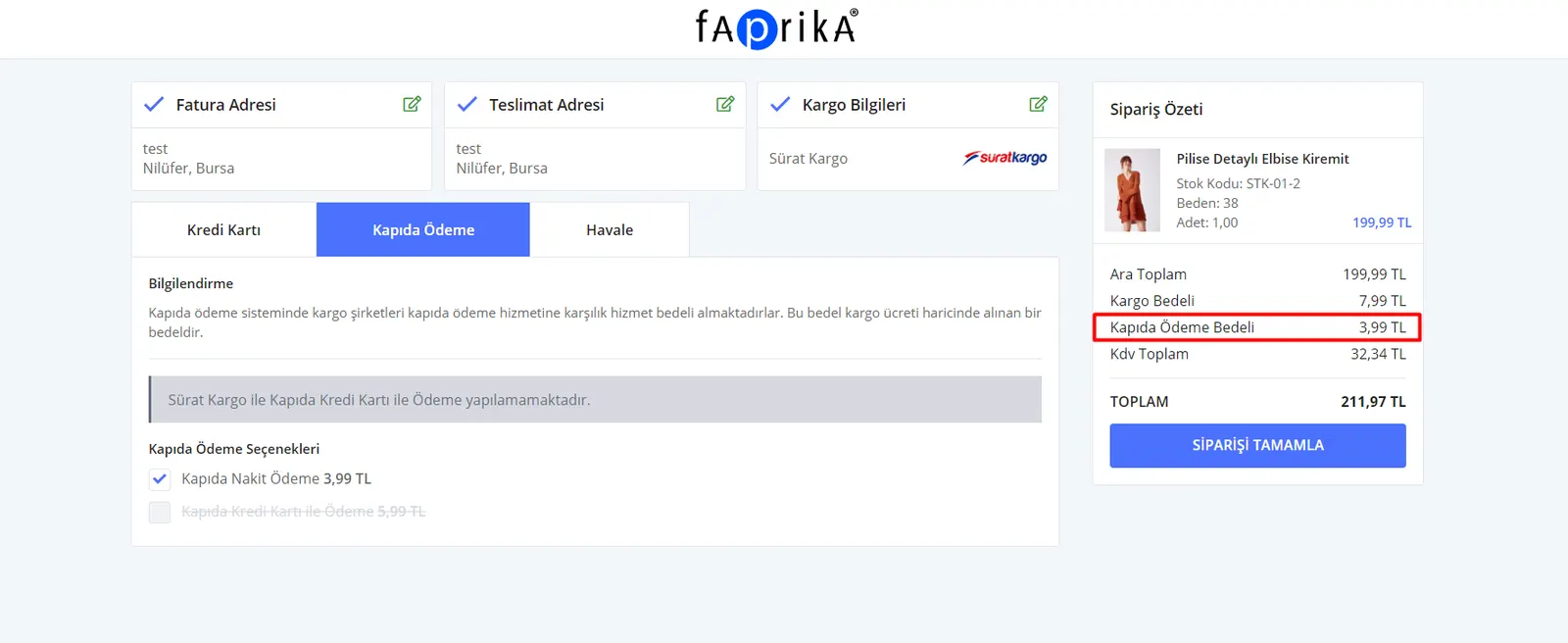
After finishing the edits, let’s see how it looks on the “Complete Order” screen.
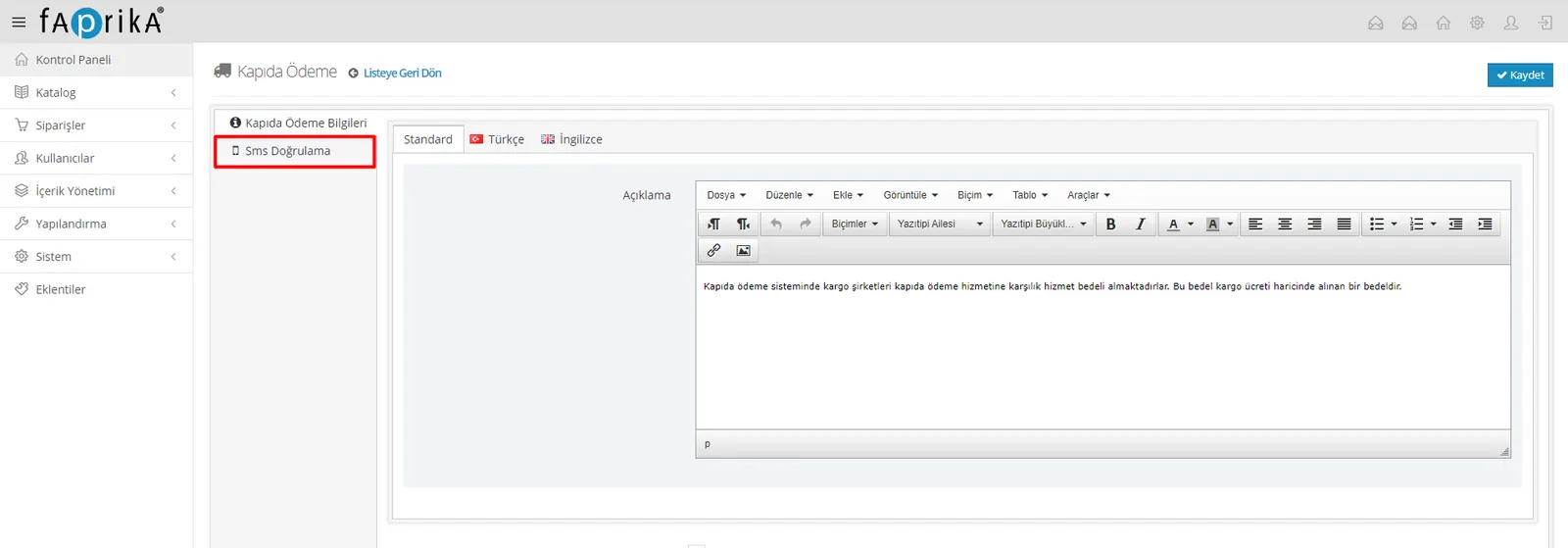
Now let’s suppose we want to send an order confirmation link by SMS to customers who complete their purchase with cash on delivery, and go to the “SMS Verification” section in the same panel.
The message in the “SMS Verification Content” section appears by default as in the image. If we want to change it, we can edit the text outside the curly brackets.
Because, for example, the {name} parameter automatically pulls the name of the customer who placed the order, as registered in the system, into the “SMS Verification Content”.
If we change the words inside the curly brackets, that is, the parameters, the customer information and verification link will be sent incorrectly or not sent at all. After making all the edits, click the “SMS Verification Active” button and then “Save”.
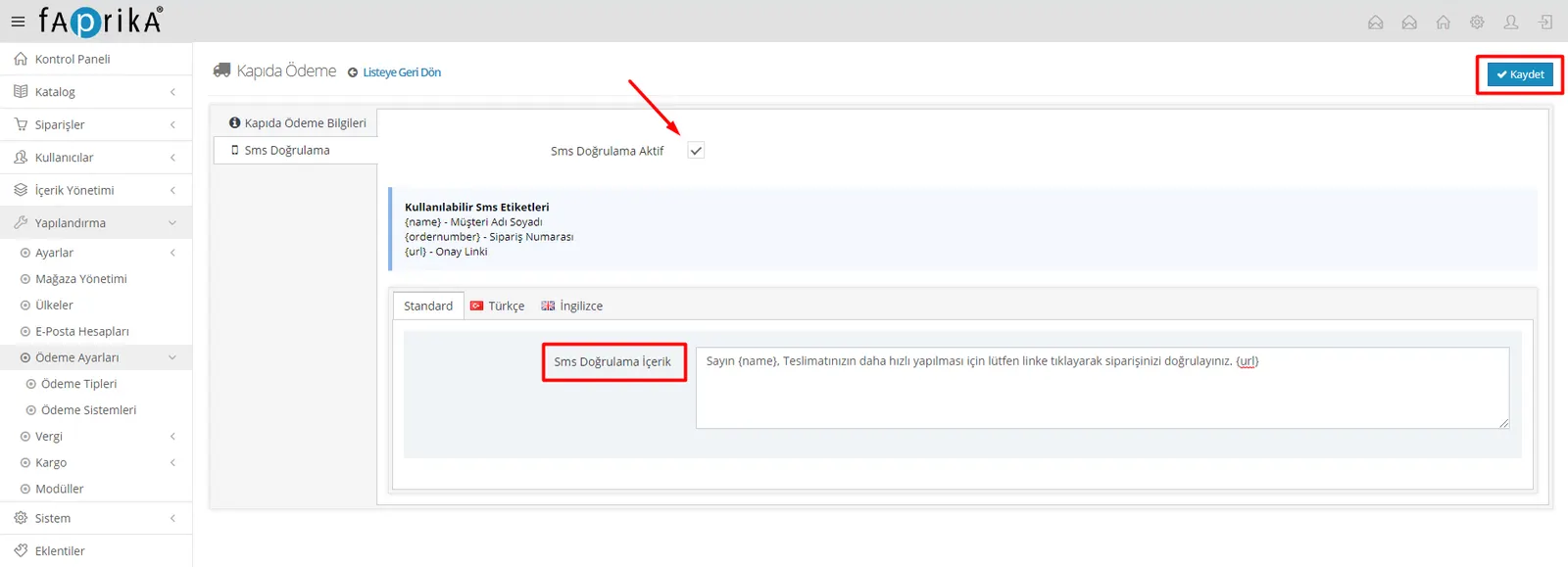
Warning: The {Url} parameter is the short code of the cash on delivery verification link that is sent with the SMS. Changing this parameter or deleting it from the content prevents your customers from verifying their cash on delivery orders.