
Content Management
Frequently Asked Questions
By collecting the questions frequently asked by users in a single panel, you can help them easily find the right answers. All the questions and answers you add to the system are listed in this panel.
In This Tutorial
By collecting the questions frequently asked by users in a single panel, you can help them easily find the right answers. All the questions and answers you add to the system are listed in this panel.
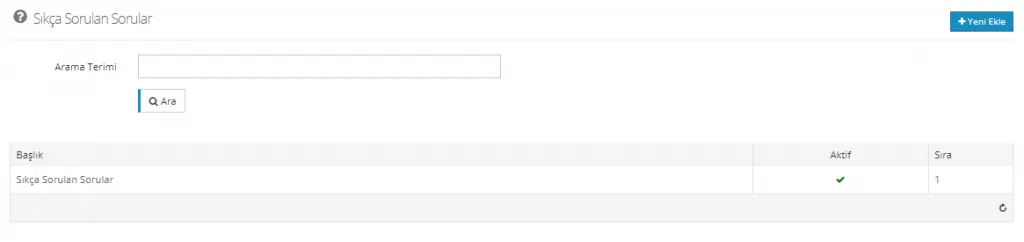
You can design several different headings for Frequently Asked Questions. You can separate them into pre-sales and post-sales questions, or share more content in this area under other names. When you want to add new Frequently Asked Questions, you need to click the Add New button.
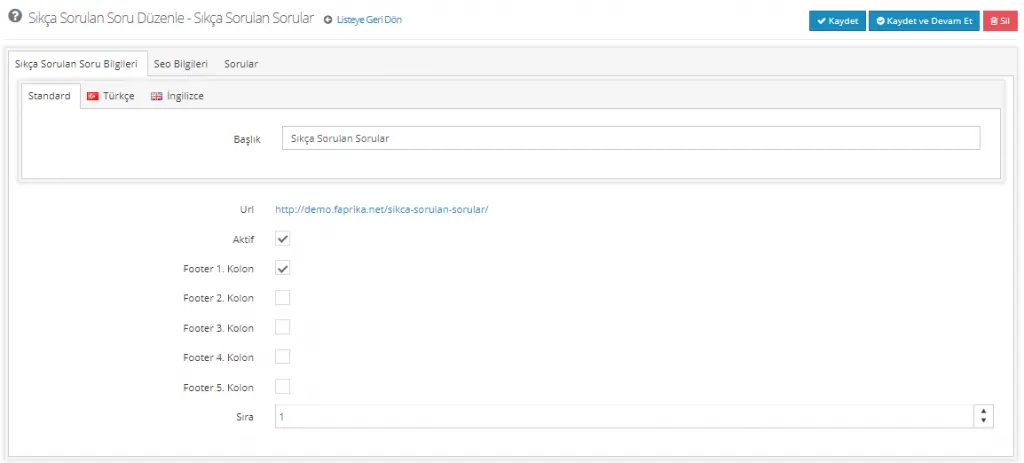
Frequently Asked Question Details
The first area that greets us in the panel is Frequently Asked Question Details. This area has Standard, Turkish and English language options. However, the Standard and Turkish selections serve the same function. You do not need to fill in the extra Turkish language field. If you want to work in an additional language, you can contact our support team to easily complete the process.
Title
The Title field determines the name under which the page will appear in the footer area. You can enter ‘Frequently Asked Questions’ here, or choose a different name.

Active
For the page to be active, the Active option must be checked.

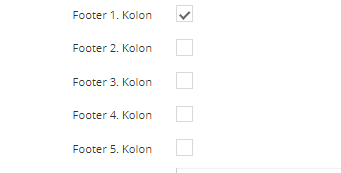
Footer Columns 1, 2, 3, 4, 5
You can also set in which footer area the page will be displayed from this panel.
Order
We have made a selection for the footer column. So in which position in the column will it be displayed? The Order field determines this. If you want the title to appear at the very top, you can enter 0 (zero) or negative numbers.

After making the changes, let's continue by clicking Save and Continue.
SEO Information
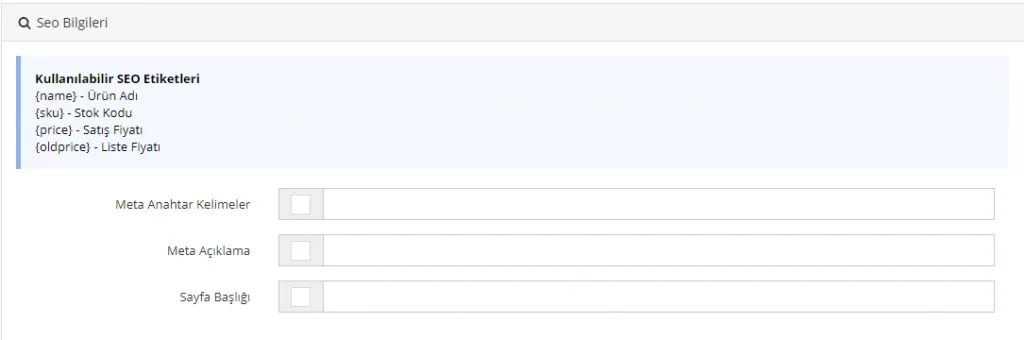
Another area where we edit the Frequently Asked Questions is the SEO Information area. We also need to edit this area according to the content we have created.
Meta Keywords
Allows bulk entry of meta keywords for the selected products.

Meta Description
Allows bulk entry of a meta description for the selected products. You can write the most suitable meta description for the products you selected in bulk, using 155 characters.

Page Title
Allows bulk entry of a page title for the selected products. You can write the most suitable page title for the products you selected, using 65 characters.

After making the change, let's continue by clicking the Save and Continue button.
Questions
In this area, we will start filling in the content of the Frequently Asked Questions area we created.
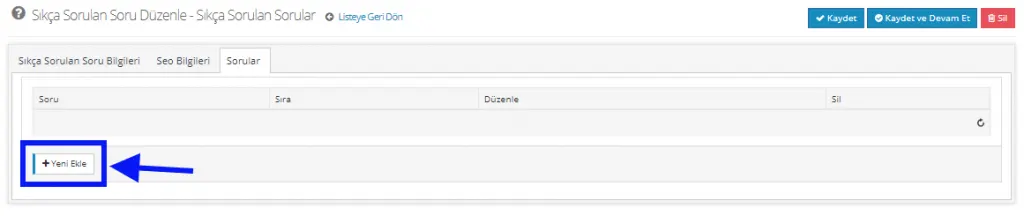
Let's add the questions and their answers to the system one by one by clicking the Add New button. When we click Add New, we encounter the language selection, question and answer fields. Let's fill in these fields.
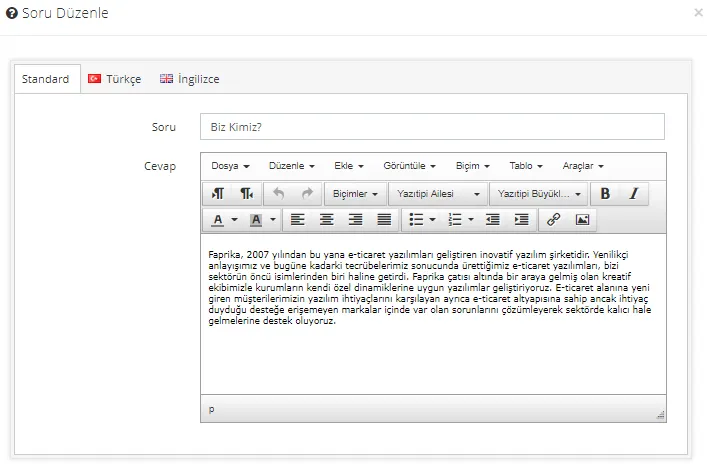
In the Order field in the same panel, let's enter a number if we want to arrange the order. If we make no changes, the content entered first will be listed at the top.

After completing the editing, let's add the new question by clicking the Save button. Let's continue this process until we have added all the questions and answers to the system.
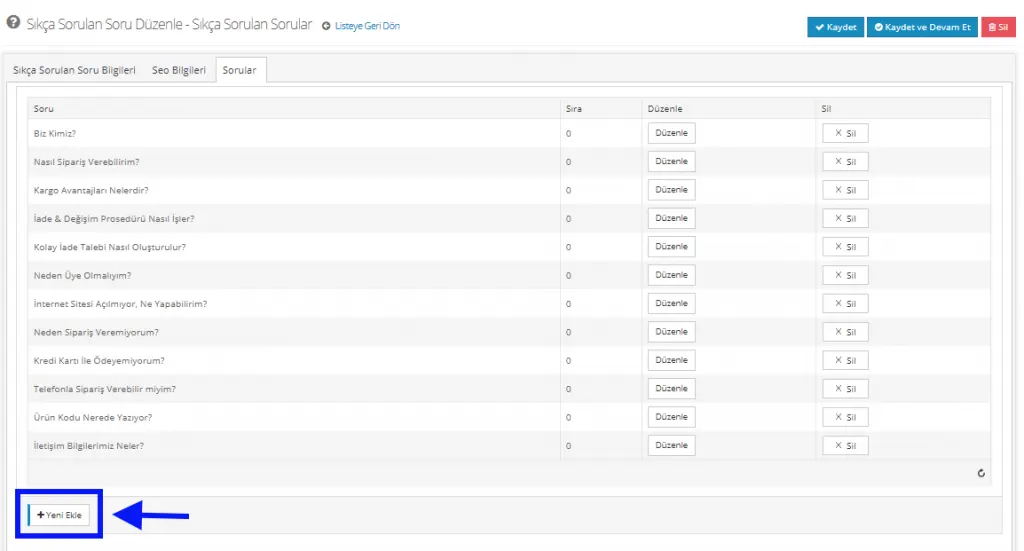
Let's add the questions one by one. When we want to add a new one, it is enough to click the Add New button at the bottom right. If we add a wrong question, we can delete it by pressing the Delete button, and we can quickly edit the content from this panel.
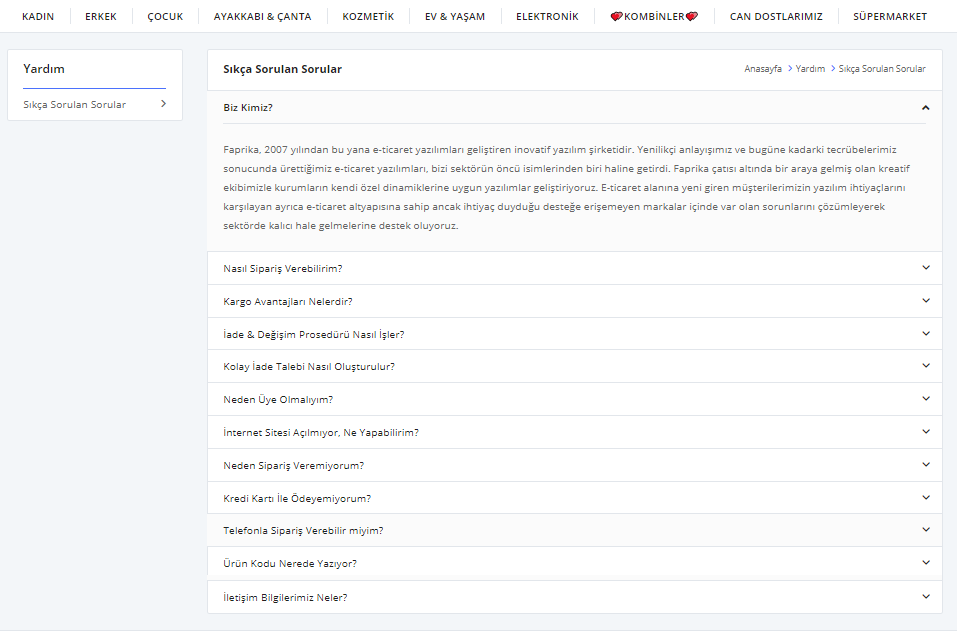
Now that all the questions have been added, let's see where and how this area appears on our site.
First, let's look at its position on the homepage.
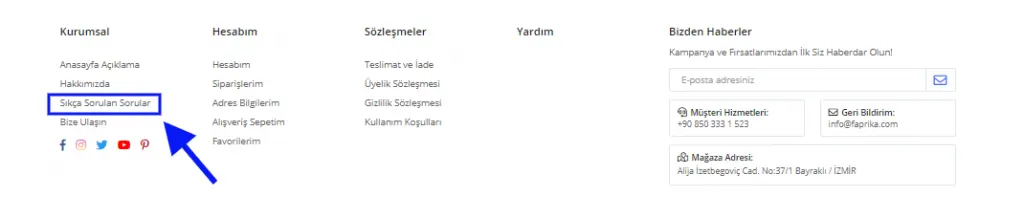
The title was displayed in the 1st Footer column in line with our selection. Since we did not intervene in its order, its position in the column was determined automatically.
Let's click the title to see the page view:
Deactivating Frequently Asked Questions
To deactivate the title, simply uncheck the box next to the Active option in the editing area.
Deleting Frequently Asked Questions
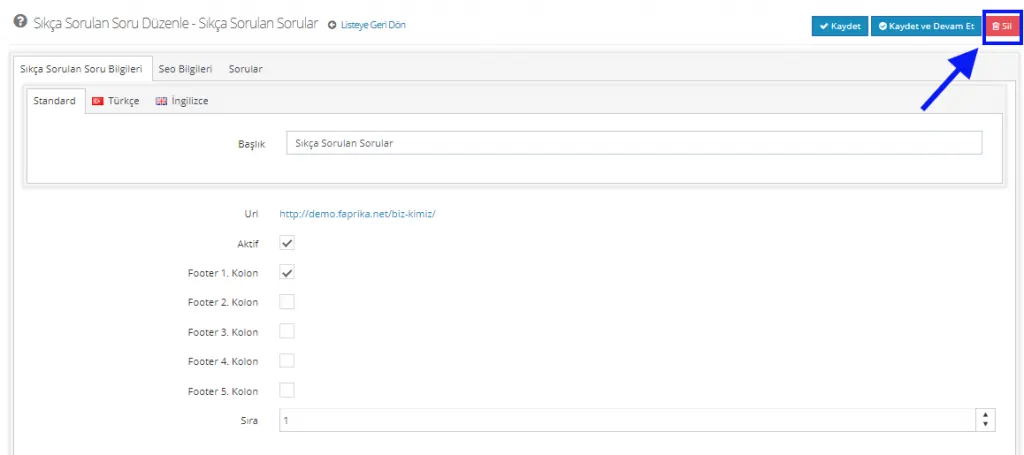
To delete the title, simply click the Delete button in the top right corner of the editing panel.
After making all the changes, you can complete your process by clicking the Save button.